Provisioning single sign-on (SSO) and SCIM
Let your team sign in through your company’s identity provider with , and let that provider create, update and deactivate the people in your workspace over . You need the System Admin , and administrator access to your identity provider. The two are set up separately, and single sign-on comes first.
Single sign-on
Section titled “Single sign-on”Mitratech Comp connects to an identity provider over OIDC (OpenID Connect) or SAML 2.0.
Create a connection
Section titled “Create a connection”- Go to Settings → Access → Security.
- On Single sign-on, select Set up, or Manage if a connection already exists.
- Select New connection, give it a Name, choose its Protocol, and select Create. The connection starts as Draft.
- Under Provider configuration, enter the values your identity provider gives you. For OIDC that’s the Issuer URL, Client ID and Client secret, and any Additional scopes. For SAML 2.0 it’s the Metadata URL, or else the IdP entity ID, IdP SSO URL and IdP signing certificate(s). Every URL must start with
https://. For a multi-tenant Microsoft Entra ID app, whose issuer contains{tenantid}, also list your tenant’s ID in Allowed Microsoft Entra tenant IDs: sign-ins from any other tenant are refused, and the connection can’t be tested or enabled without one. - In Verified email domains, list the email domains this connection may create accounts for, separated by commas. A connection needs at least one before it can be enabled.
- Select Save. A change to what the connection trusts — its identity provider, client, certificates, domains or tenants — asks Confirm it’s you: enter your password and select Confirm. The page confirms with Connection saved. Until you save, Unsaved changes shows beside Save and Cancel, and leaving the page asks Discard unsaved changes? first.
- Under Service-provider values, copy what your identity provider needs from you: the Redirect URI for OIDC, or the ACS URL, SP entity ID and SP metadata URL for SAML 2.0.
A client secret is stored encrypted and never shown again once you’ve saved it. To change it, enter a new one.
Test it, then turn it on
Section titled “Test it, then turn it on”- Under Test connection, select Test connection. A sign-in with your identity provider opens in a new window. It signs no one in; it checks what your identity provider sends back.
- A good test shows Received a valid assertion for the person who signed in, with the details your identity provider sent. The connection is now Tested.
- Under Status & enforcement, select Enable, and confirm with your password.
Your workspace’s sign-in page now shows Log in with SSO beside the password form, and both ways in work.
Unless SCIM creates your sign-ins (see Decide who creates logins), the first time someone from a verified domain signs in through single sign-on they’re given a sign-in as a People Manager; change their role at Settings → Workspace → Members if they need another. Someone who already has a sign-in in your workspace — someone you invited, added, or who signs in with a password — confirms it’s them first: the first time they use single sign-on, we email the address on their sign-in a link, and their single sign-on reaches that sign-in once they open it and select Yes, this was me. Only the email addresses your identity provider marks as verified are accepted.
Require it for everyone
Section titled “Require it for everyone”To make single sign-on the only way in, switch on Require SSO for all members (disables password sign-in) and confirm with Enforce SSO. The switch is available once the connection is enabled and has passed a test in the last 24 hours. When the change takes effect, a confirmation appears in the bottom-right corner.
The keeps password sign-in, as the one way back in if your identity provider is unavailable. Set up on the owner’s sign-in before you enforce.
Turn it off
Section titled “Turn it off”Disable switches the connection off (it asks for your password too), and the sign-in page offers password sign-in only. Delete removes the connection and its stored secrets, and can’t be undone.
Go to Settings → Access → Provisioning. SCIM 2.0 lets your identity provider create, update and deactivate the people in your workspace.
Give your identity provider a token
Section titled “Give your identity provider a token”- Under SCIM tokens, enter a Label, such as the name of your identity provider, and select Generate token.
- In Copy your SCIM token now, select Copy token. The token is shown only this once.
- In your identity provider, point SCIM at
/scim/v2, as the page shows, and authenticate with the token.
The token list shows each token’s Label, when it was Last used, and whether it’s Active or Revoked. Revoke cuts off the identity provider using that token straight away, and can’t be undone; generate a new token to reconnect.
Decide who creates logins
Section titled “Decide who creates logins”By default, SCIM keeps your employee records up to date, and single sign-on creates each person’s sign-in the first time they use it. Switch on SCIM creates login accounts to have SCIM create a sign-in for each active person instead.
Those sign-ins have no password: their holders sign in through single sign-on. While the switch is on, members arrive from your identity provider rather than from Add user.
Give roles from groups
Section titled “Give roles from groups”- Under Group → role mapping, enter an IdP group (displayName).
- Choose a Role, and select Add mapping.
Everyone in that group gets that role. Someone in more than one mapped group gets the first of their roles in this order: System Admin, Total Rewards Admin, HR Business Partner, Final Approver, Finance Manager, Legal / Compliance Manager, People Manager. Someone in no mapped group gets the Default role for provisioned logins, which is People Manager unless you choose another; it can be set while SCIM creates logins. Someone whose role came from a group goes back to that default when they leave every mapped group.
Deactivating someone
Section titled “Deactivating someone”Deactivating someone in your identity provider deactivates their sign-in here and signs them out. SCIM never deactivates the account owner or your last System Admin, and never takes the System Admin role from either of them.
Every change to single sign-on and provisioning is recorded on the ’s Account activity tab. See Reviewing the audit trail.
If your workspace signs in through WCP Hub
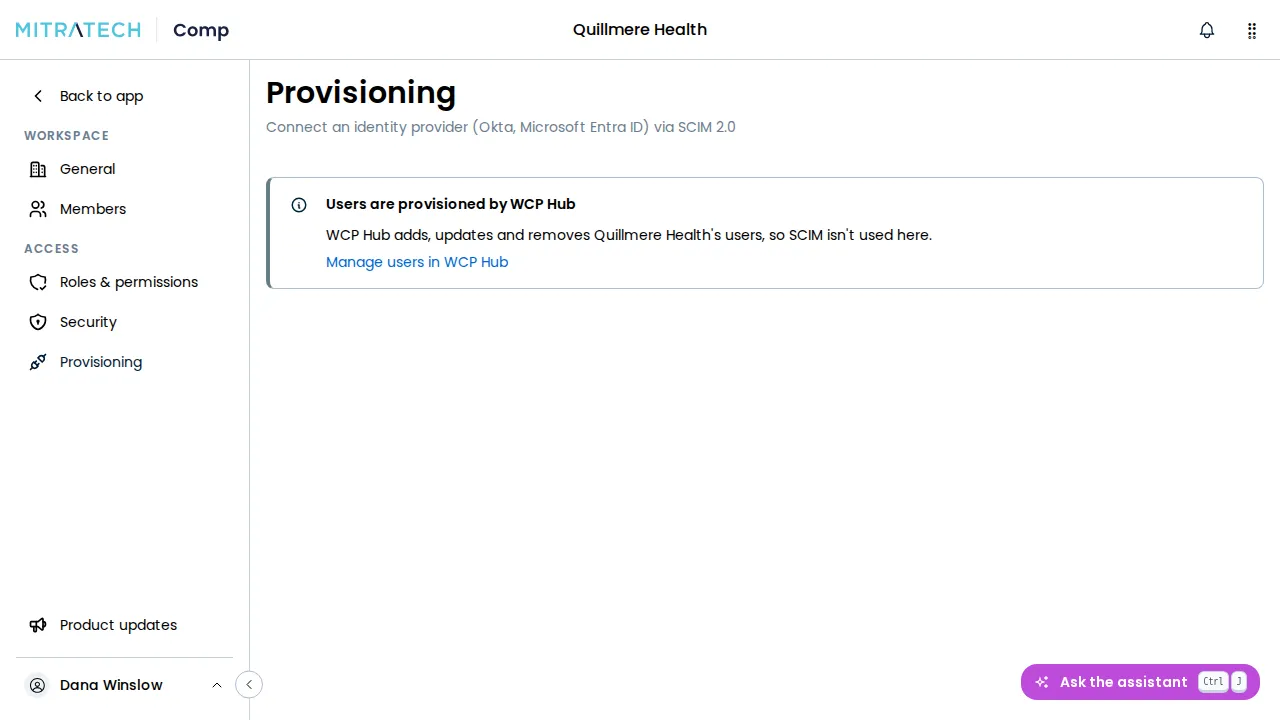
Section titled “If your workspace signs in through WCP Hub”A workspace on WCP Hub has neither single sign-on nor SCIM of its own. Settings → Access → Security shows one note, Sign-in and two-step verification are managed in WCP Hub, where the Single sign-on card would be, and Settings → Access → Provisioning shows its own note, Users are provisioned by WCP Hub. Both link to Hub. Connect your identity provider to Hub rather than to the workspace, and add and remove your users there. Roles stay in Mitratech Comp. See Mitratech Comp on WCP Hub.