Inviting your team and managing access
Add the people who will work in Mitratech Comp, choose each one’s , and send them the email that lets them in. You need the System Admin role. It helps to have read Understanding roles first.
Add someone
Section titled “Add someone”- Go to Settings → Workspace → Members.
- Select Add user.
- In Add a user, choose how to find them. Employee record picks someone from your by Employee. Email takes their Email, First name and Last name.
- Choose their Role.
- Leave Send welcome email now ticked to invite them straight away, or clear it to add them now and email them later.
- Select Add user.
What they receive
Section titled “What they receive”The welcome email carries a link that works for 7 days. They open it, choose a password, and they’re in. If your workspace uses , the link offers that route too.
Where each member stands
Section titled “Where each member stands”The State column shows where each member is. Filter by state narrows the list to one of them.
| State | What it means |
|---|---|
| Staged | Added, and not emailed yet. |
| Invited | Sent the welcome email, and not signed in yet. |
| Active | Has signed in. |
| Deactivated | Their access was revoked or removed. See Suspending, restoring and removing access. |
Send or resend the welcome email
Section titled “Send or resend the welcome email”On a Staged row, Send welcome email sends it and the row moves to Invited. On an Invited row, Resend welcome email sends a fresh link that works for another 7 days. You can send to the same person once a minute.
Change someone’s role
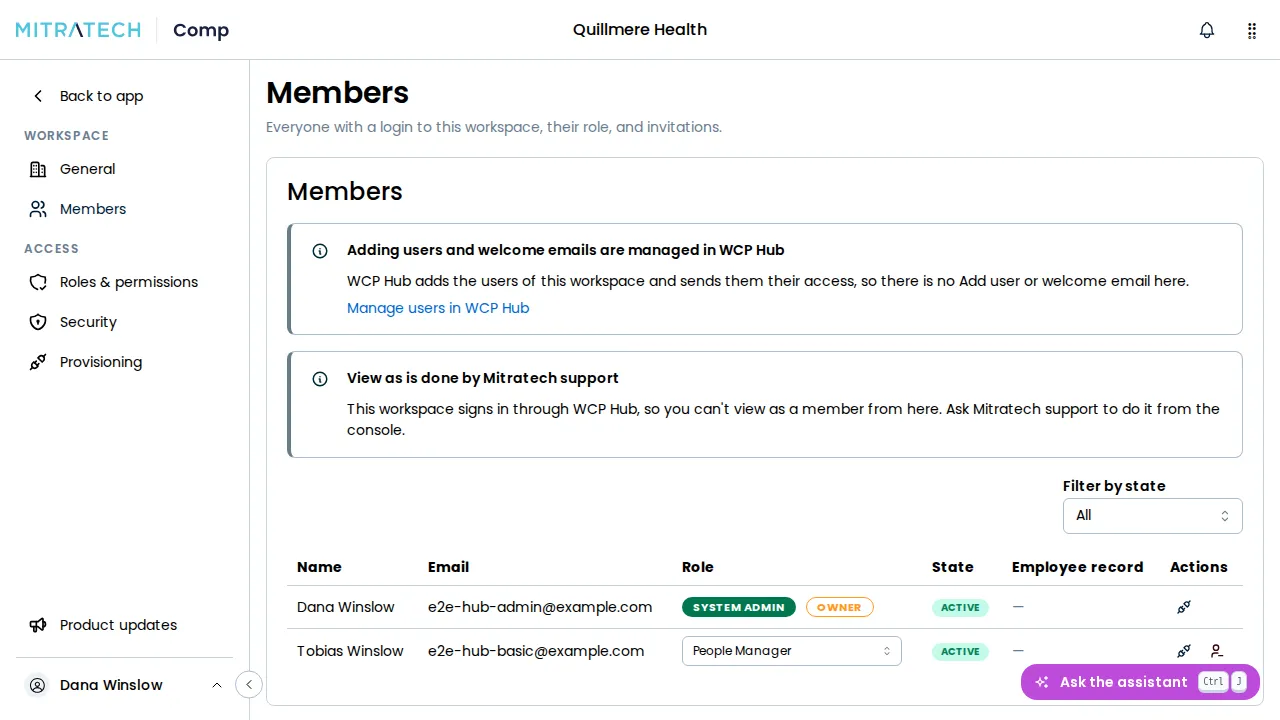
Section titled “Change someone’s role”Choose a new role in the member’s Role column. It saves as soon as you choose it, and a confirmation appears in the bottom-right corner when done.
The Role column shows a role without a picker on your own row and on the ’s. Another System Admin changes your role, and the owner stays a System Admin.
If your identity provider manages your members
Section titled “If your identity provider manages your members”If your workspace has create its logins, members arrive from your identity provider rather than from Add user, and an identity provider group can decide their role. See Provisioning single sign-on (SSO) and SCIM.
If your workspace signs in through WCP Hub
Section titled “If your workspace signs in through WCP Hub”Users are added and removed in Hub, not here. Settings → Workspace → Members has no Add user or welcome email, and a note says users are managed in WCP Hub, with a link to Hub. Mitratech Comp sends no welcome email to a Hub workspace’s users.
Roles stay here, and you change one in the Role column as above. The first Hub admin to sign in to a new workspace becomes the account owner, and a System Admin. See Mitratech Comp on WCP Hub.