
Exporting the payroll file
Produce the file your payroll system loads to apply the cycle’s pay changes. You need the System Admin or Total Rewards Admin , and a cycle with a — see Finalizing a cycle, and what locks.
The cycle’s Payroll tab opens once the cycle is finalized; until then it is greyed out, because there is nothing final to hand off.
Check what payroll is owed
Section titled “Check what payroll is owed”Open the cycle and choose the Payroll tab. Before you export, it shows:
- Approved changes: the number of lines the file will carry.
- New base — changed employees: the annual base pay of the employees in the file after their increases, and how much it went up.
- Effective date: the cycle’s pay effective date, which is on every line.
These figures are worked out the same way as the file, so what you read here is what you get.
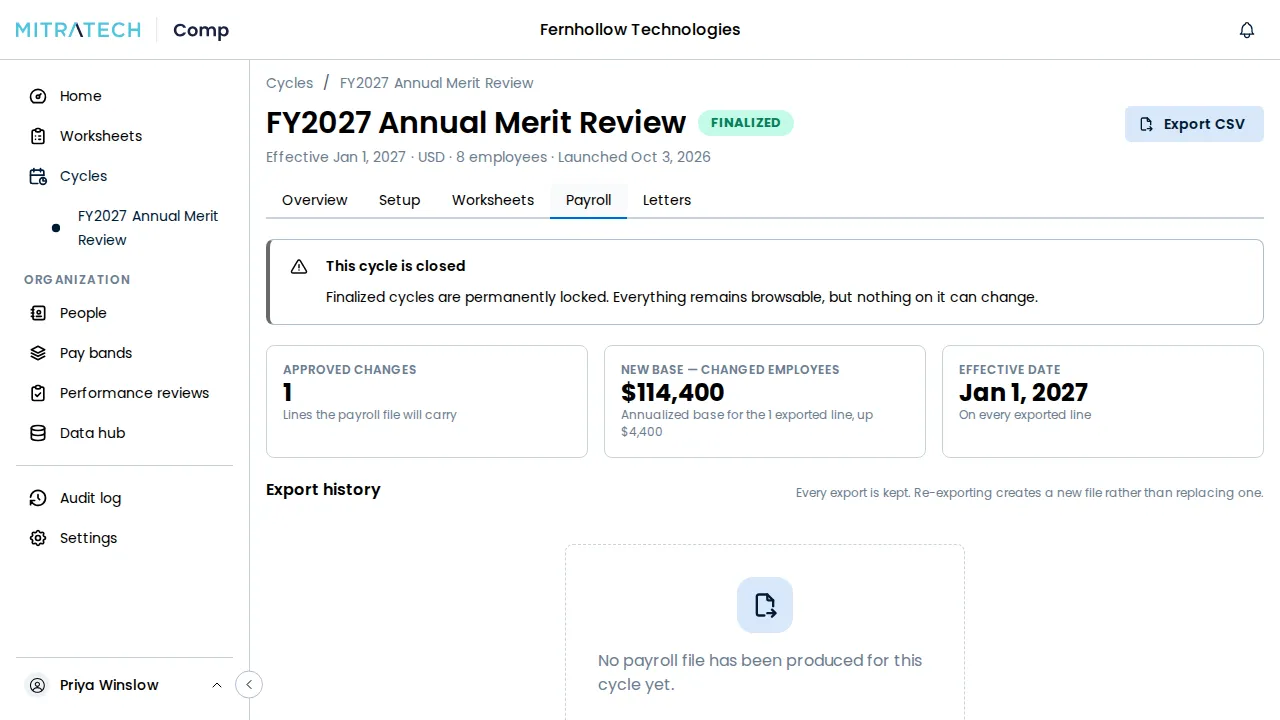
Export the file
Section titled “Export the file”- Select Export CSV.
- A message confirms the file is being generated, and a row appears under Export history.
- When the row reads Ready, select CSV on it to download the file.
Each row in Export history shows when it was exported, who requested it, its status (Queued, Generating, Ready or Failed), the number of rows, the total increase and the effective date. Every export is kept: exporting again creates a new file and leaves the earlier ones downloadable. Each export and each download is recorded on the — see Reviewing the audit trail.

What the file contains
Section titled “What the file contains”The file is a CSV with a header row, and every value is in quotes. It has one line per approved change: an employee whose base pay changed, who was granted a bonus, or whose approved proposes a promotion — a title or grade change — even with no pay change of its own. An employee with none of those is left out. Lines are in the same order every time you export.
Money is in whole currency units with the currency’s usual decimal places, such as 85000.00 for US dollars, not cents. merit_amount and promotion_amount are the amounts the manager planned, whether they typed them or typed percentages that were priced to them, and together they make up increase_amount. The columns, in order:
| Column | What it holds |
|---|---|
employee_id | Mitratech Comp’s own identifier for the employee. |
external_employee_id | Your HR or payroll system’s identifier for the employee, when one is on record. Blank when there is none. |
given_name | First name. |
family_name | Last name. |
work_email | Work email address. |
pay_currency | The three-letter code of the currency the employee is paid in, such as USD. |
current_base_salary | Annual base pay before the change. |
new_base_salary | Annual base pay after the change. |
increase_amount | The change in annual base pay. Negative for a decrease. |
increase_pct | The change in base pay as a percentage, such as 3.5 for 3.5%. |
bonus | The bonus granted, as an amount. 0.00 when none was granted. A bonus is paid on top of base pay and is not part of new_base_salary, increase_amount or increase_pct. |
new_grade_code | The grade the employee moves to with a promotion. Blank when their grade does not change. |
pay_effective_date | The cycle’s pay effective date, as YYYY-MM-DD. The same on every line. |
new_title | The title the employee moves to with a promotion. Blank when their title does not change, including when a promotion moved their grade or pay but not their title. |
merit_amount | The part of increase_amount that is merit, as an amount. 0.00 when there is no merit. |
promotion_amount | The part of increase_amount that is the promotion, as an amount. 0.00 when there is no promotion. |
The column names and their order stay the same from cycle to cycle, so you can map them in your payroll system once. A new column is only ever added at the end, which is why merit_amount and promotion_amount follow new_title.
When the effective date is close or has passed
Section titled “When the effective date is close or has passed”If the pay effective date is within two weeks, or has already passed, and nothing has been exported for the cycle yet, the tab warns you. The warning never stops you exporting, and it goes once an export exists. Your payroll system computes any resulting back pay from the rate and the effective date on each line.
When the cycle has no pay effective date
Section titled “When the cycle has no pay effective date”A cycle can be finalized without a pay effective date, but it cannot be handed to payroll. Export CSV stays unavailable, and the tab reads Not ready to hand off: “This cycle has no pay effective date, so payroll cannot be told when the changes take effect.”
The date cannot be added afterwards: it is fixed when the cycle launches. Set the Pay effective date before you launch — see Setting a timeline.
When nobody has an approved change
Section titled “When nobody has an approved change”If the cycle finalized with no approved pay changes, bonuses or promotions, the tab says there are no changes to hand off, and Export CSV stays unavailable.