
Importing employee data
Load your from a spreadsheet, so every , cycle and has people to read from. You need the System Admin or Total Rewards Admin , and a spreadsheet with one row per employee and each employee’s work email address.
Start an import
Section titled “Start an import”-
In the sidebar, under Organization, select Data hub.
-
Select Import data. You can also reach it from People, with Import CSV.
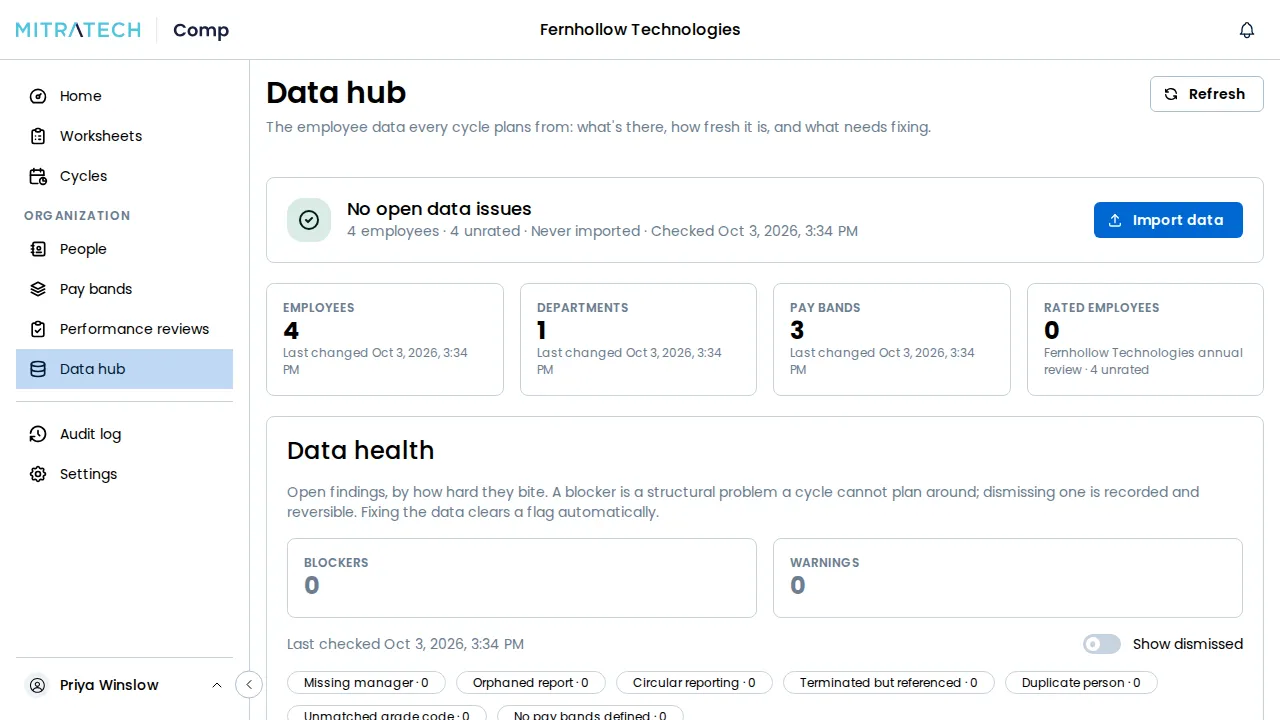
-
Under Start a new import, drag your file onto the page, or click to choose it. A
.csv,.tsv,.xlsxor.xlsfile of up to 50 MB is accepted, one file at a time.
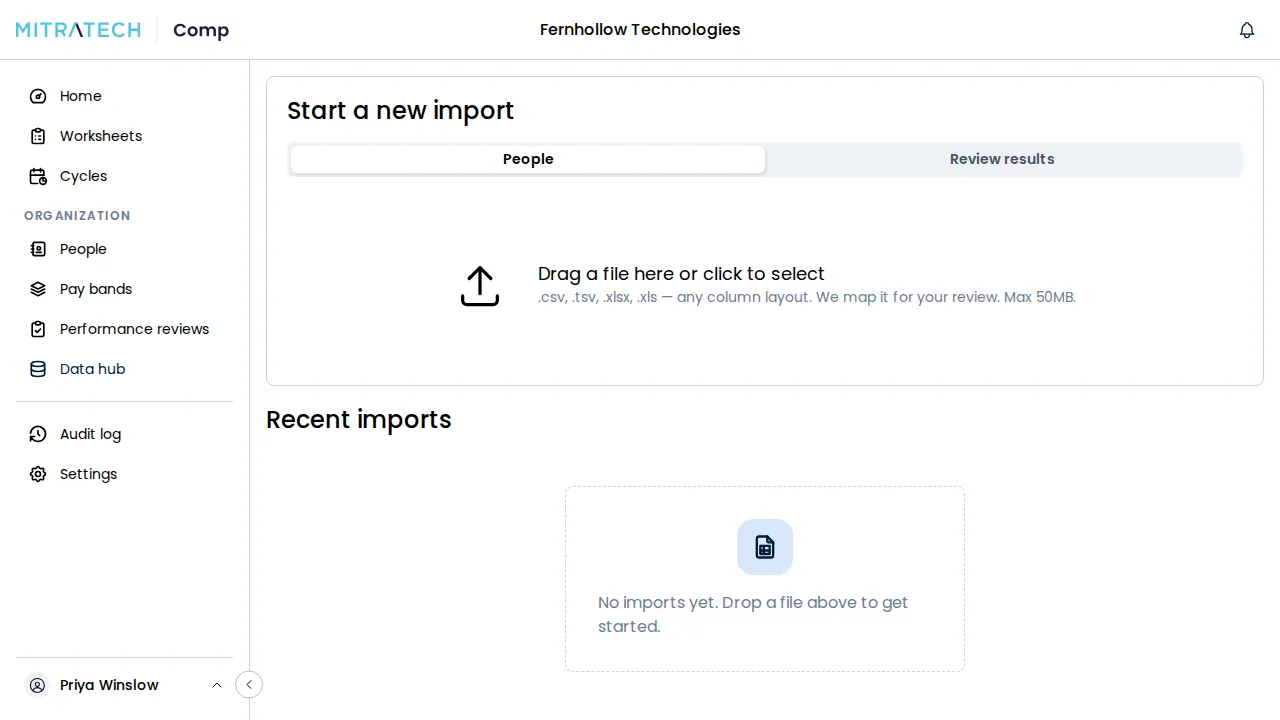
The file doesn’t need to be laid out any particular way: Mitratech Comp maps its columns onto its own for you to review. The page moves to the new import, shows Analyzing the file… and updates by itself.
From upload to the review
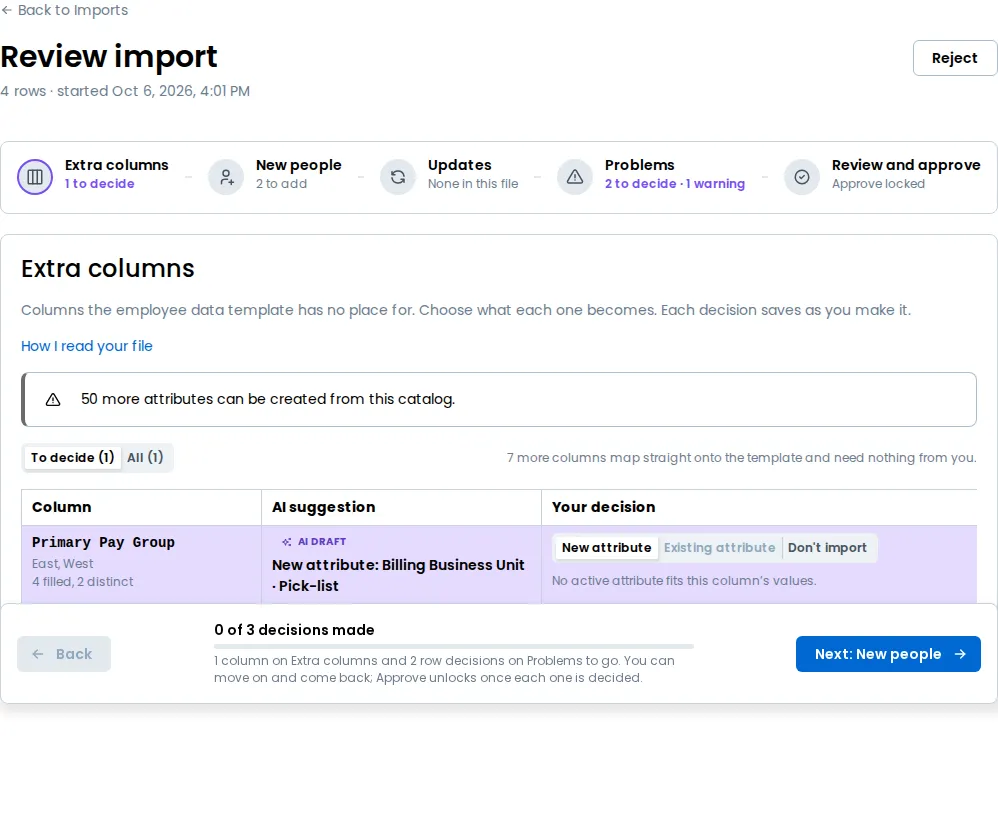
Section titled “From upload to the review”When the import reaches Awaiting review, the page opens the review for you, so you don’t have to look for it. Nothing has been written yet. The review is a short series of steps, from Extra columns to Review and approve, and an import that is still at Awaiting review opens there from Recent imports too. Read what it proposes and decide, as described in Reviewing an import.
Columns the template has no place for
Section titled “Columns the template has no place for”A column in your file that isn’t in the table below is an extra column, and nothing is dropped without your say. The review’s first step, Extra columns, lists each one on a line with sample values from your file, and you choose what it imports as:
- New attribute — keep it as a custom attribute the import creates, named and typed by you.
- An existing attribute — fill a custom attribute you already have.
- Don’t import — leave the column out.
You must decide every extra column before you can approve the import, and nothing is created until you do. A file with no extra columns has nothing to decide there.
What a file can carry
Section titled “What a file can carry”Every row needs a work email address: it is how Mitratech Comp tells one employee from another, and how a later import finds the same person again. A new employee also needs a first and a last name. Every other column is optional.
| Column | What it holds |
|---|---|
work_email | Required. The employee’s work email address. |
given_name, family_name | First and last name. Required for someone not already in your employee data. |
title | Job title. |
department | The department’s name. A department that doesn’t exist yet is created. |
manager_email | The manager’s work email. The manager can be another row in the same file. |
dotted_line_manager_emails | Any further managers’ work emails, separated by semicolons. |
phone, location, pronouns | Free text. |
employment_status | active or terminated. |
start_date | The hire date, as YYYY-MM-DD. |
birthday | YYYY-MM-DD or MM-DD. |
base_salary | Annual base pay in whole currency units, such as 118000. |
currency | The three-letter code base pay is paid in, such as USD. USD when left out. |
fte | Full-time equivalent, above 0 and at most 1. 1 when left out. |
job_id | Your job code. |
grade_id | The employee’s , which matches them to a pay band. See Handling employees without a pay band. |
performance_rating | Any value from your own performance process, or blank for not rated. The import review has you name and date the review it belongs to (or add it to one you already have) and order every value, before you approve. See Performance reviews. |
A .csv file already laid out in these columns is used as it is, and the review says so. Every column of the file that isn’t listed is an extra column, as above. A file can hold up to 50,000 rows.
Keep it current
Section titled “Keep it current”An import adds new people and updates the ones it already knows. To change your employee data later, see Updating employee data.