
Inviting participants
Make sure everyone who plans or approves in the cycle is a before it launches. You need the System Admin or Total Rewards Admin , and the people in your — see Importing employee data.
What a participant is
Section titled “What a participant is”A participant is an employee with a sign-in to your workspace and a role, such as People Manager. Being one is a fact about the workspace rather than about one cycle: a participant takes part in every cycle you launch while their access stands.
Each participant’s access shows one of four statuses:
- Staged — added, and not yet sent a welcome email.
- Invited — sent a welcome email, and not yet signed in.
- Active — signed in.
- Deactivated — access switched off.
Add one person
Section titled “Add one person”- In the sidebar, select People and open the person.
- On their Workspace access tab, choose a Role, such as People Manager.
- Leave Send welcome now ticked to email them straight away, or untick it to add them as Staged with their welcome held until you send it. A launch does not email someone whose welcome is held.
- Select Add participant.
The person opens the link in their welcome email, chooses a password, and signs in with the role you picked. Their status becomes Active.
Add them from an import
Section titled “Add them from an import”Once an employee data import has completed, its page carries a Comp-planning participants panel that suggests everyone with direct reports as a People Manager. Tick Include for each person to add, choose their Planning role, and tick Send now for anyone to welcome straight away. Then select Confirm participants, or Save and send welcome to the number you ticked. Anyone already invited or already signed in is skipped. The import itself is covered in Reviewing an import.
See who each ticked manager would plan
Section titled “See who each ticked manager would plan”Choose Chart beside the panel’s title to see the same people on the org chart before you save. Table stays the place to tick people and choose roles; the chart only draws what you have ticked.
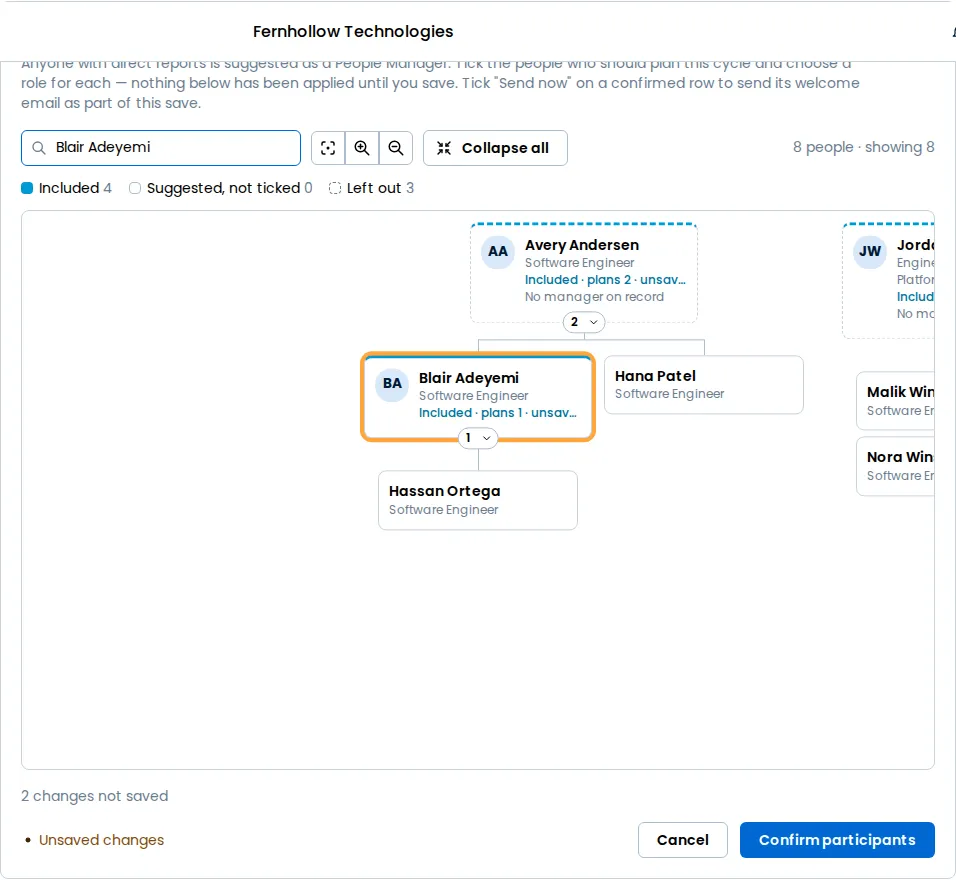
Each person is drawn as one of these:
- Included · plans n — ticked, with the number of people whose they would plan.
- Suggested: People Manager — proposed, and not ticked.
- Planned by a name — a person whose own manager is not ticked, so the nearest ticked manager above them would plan them.
- A dashed box with a reason, such as No participating manager above them or No manager on record — someone who would be left out of every cycle if you saved now.
A person whose tick or role differs from what is saved reads unsaved, and n changes not saved appears above the save button, which works exactly as it does in the table. The legend counts follow your ticks: Included, Suggested, not ticked and Left out. Select a manager on the chart to return to the table at their row. The chart waits a moment after your last change before it updates, and keeps the last drawing meanwhile. If it cannot load, select Try again or Show the table.
When welcome emails go
Section titled “When welcome emails go”A welcome email goes out at one of two moments: when you add someone with Send now or Send welcome now ticked, or when a cycle launches. Launch welcomes every staged participant in the workspace, except System Admins and anyone whose welcome you held by unticking Send welcome now. People added from an import with Send now unticked are not held, so launch welcomes them.
Launch also sends a fresh welcome to every participant who was invited but has not signed in yet, unless they were emailed in the last minute. That email says planning is open for the cycle and when it is due, and its new link replaces the old one.
Before you launch
Section titled “Before you launch”A manager who is not a participant has no worksheet, and when no participating manager sits above their team, that team is left out of the cycle. The participant warnings and the buttons that clear them sit in the 1. Participants section of the cycle’s Setup tab, below the and above Who plans whom:
- Managers launch will skip lists each such manager, with how many employees would go unplanned. Every manager starts ticked; clear the ones you don’t want and select Confirm as managers to make the rest People Manager participants. No email goes out: they move to Welcome emails to send.
- Welcome emails to send lists who launch will welcome. Every person starts ticked; clear anyone who should wait and select Send welcome emails to send the rest theirs now. Hold beside a person keeps launch from emailing them, for example someone you only reach through View as.
- Welcome emails held lists staged participants whose welcome is held, so launch will not email them. Send welcome email sends theirs now, and Release hold lets launch send it.
- Participants whose access is revoked lists people a worksheet or an approval step waits on; a System Admin can select Restore access.
- Overlapping participants lists people another active cycle also plans, with Open cycle for each.
The Launch summary beside the sections carries a line for each, and its Fix opens this section at the warning. A section with none of these shows no block at all. See Verifying everything before launch.
A person added after a cycle has launched has no worksheet in that cycle.