
Verifying everything before launch
Check what launching will do before you launch, and clear anything that stops it. You need the System Admin or Total Rewards Admin , and a cycle in the Setup phase that you have configured — see Creating a cycle.
While the cycle is in setup, the Launch summary beside the sections is the one place that says whether it can launch. Each warning is also shown in the section whose edit fixes it, beside the button that fixes it, so you read the line in the summary and act where the section shows it.
The launch summary
Section titled “The launch summary”The Launch summary shows what launching now would create: Employees planned, the Merit budget, what the Matrix would spend, and the headroom or overrun between the two. Beneath them it gives one verdict, then a line for every blocker, every warning and what launch will do.
- Launch is blocked — with the number of blockers, and of warnings if there are any, such as 2 blockers · 3 warnings. Launch cycle is switched off, with the count in a tooltip.
- Ready to launch — with the number of warnings, such as 3 warnings, or No warnings when there are none. Only the warnings are counted; launch goes ahead over every one of them.
Each line has one action. Fix opens the section that fixes the line and scrolls to the warning in it, Review in opens your , and Open Users opens the page where roles are assigned. Launch once the summary reads Ready to launch.
While the check is loading the summary shows neither verdict, and if the check fails it says so and offers Try again; Launch cycle stays off until the check has answered.
A closed section’s header can repeat one line from the summary, in the summary’s own words, in red for a blocker and yellow for a warning. 1. names only the skipped-managers line, n managers will be skipped; its other warnings show inside the section, not in its header. 3. Guidance names the most serious line it holds, the first open of: a guidance blocker, no , grades with no pay band, employees with no matrix recommendation, employees with no rating, and with no bound.
Blockers stop the launch
Section titled “Blockers stop the launch”A blocker is something the cycle cannot launch over. While one is open the summary reads Launch is blocked and lists it first. There are four kinds.
- A data health blocker. While your employee data has one open, the summary gives each type its own line, such as Missing manager · 1 person, with Review in Data Health. The blockers are Missing manager, Orphaned report, Circular reporting, Terminated but referenced and Duplicate person.
- A reporting loop. When people report to each other in a circle that runs through an the cycle needs, the summary lists Reporting loop, naming them. Launching is refused, and the cycle stays in setup with nothing created.
- The planning question, unanswered. Until you answer How is guidance for this cycle set? on 3. Guidance, the summary lists Choose how guidance is set for this cycle before launch, with Fix. See Building a merit matrix or pay guidance.
- A Flat cycle with nothing funded. A Flat cycle needs its merit funded before it can hand out any guidance; until then the summary lists A Flat cycle needs a funded merit funding pool before launch, with Fix.
To clear a data health blocker, select Review in Data Health on its line, then fix the record or select Dismiss on the finding and give your reason. Show dismissed lists what you dismissed, with Restore to bring a finding back. Dismissing a finding does not change your data, and it does not clear a reporting loop: correct the managers on the records involved. See Updating employee data.
See who plans whom
Section titled “See who plans whom”While the cycle is in setup, 1. Participants has Who plans whom, an org chart of your employees, below the , Who launch will skip and the participant warnings such as Managers launch will skip. It shows what launch will do with each person before you launch, so you can see a gap on the chart and fix it in the warnings and the list above it. After launch the panel is gone, because the plan is fixed. The panel opens with only its title and legend; Show chart draws the chart, and Hide chart collapses it again.
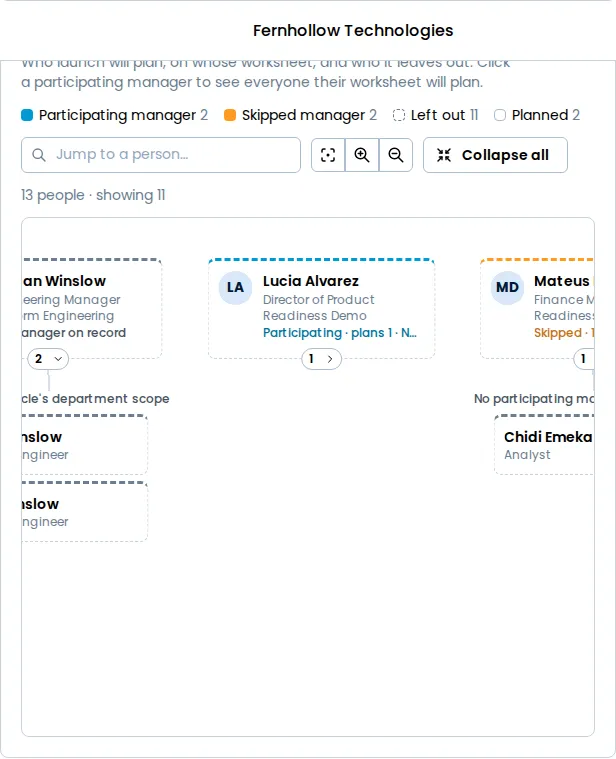
The chart opens with every branch that holds a skipped manager or a person launch leaves out drawn down to them. Each person is marked by what launch will do:
- Participating · plans a number, in blue — a manager with a login whose launch creates, and how many people it plans.
- Skipped · would go unplanned, in yellow — a manager who is not a participant, so launch creates no worksheet for them, and how many of their direct reports go unplanned.
- A dashed border and the reason — someone launch leaves out. Any of the reasons in Who launch will skip can appear, such as Excluded by your compensation team or No base pay on record.
- Planned by a name — the nearest participating manager above them, whose worksheet plans them.
A person can be more than one of these at once. A skipped manager whose team a participating manager above them plans reads Skipped and Planned by that manager.
The legend above the chart counts Participating manager, Skipped manager, Left out and Planned. The counts match the Launch summary.
Select a participating manager to see everyone their worksheet will plan. The people it plans are highlighted and the rest of the chart dims, and a card names them as text: their direct reports, and then each skipped manager’s team they are planned through, with the reason. For example: Sam Rivera’s worksheet will plan 21 people: Sam Rivera’s 13 direct reports, and Kenji Mori’s 8, because Kenji Mori has no login. Select the manager again, or Clear selection, to go back.
Select a skipped manager or a person who is left out to scroll to their row: Managers launch will skip, above the chart, for a skipped manager, where Confirm as managers is, and Who launch will skip, also above it, for anyone else. The chart changes nothing itself. When you Confirm as managers, exclude someone or remove an exclusion, the chart redraws without a reload, and a manager you confirmed turns from skipped to participating.
Warnings need a decision
Section titled “Warnings need a decision”Every other problem is a warning. Launch goes ahead over each one, but each is worth deciding on first. A warning appears as a line in the summary and again in the section that fixes it, under the heading below. Select Fix on the line to open that section.
In 1. Participants
Section titled “In 1. Participants”- n managers will be skipped — under Managers launch will skip: managers who are not participants, and how many employees would go unplanned. Each starts ticked; Confirm as managers makes every ticked one a participant.
- n participants’ access is revoked — under Participants whose access is revoked: people a worksheet or an approval step waits on. A System Admin can select Restore access.
- n employees are also in another active cycle — under Overlapping participants: people this cycle would plan who another active cycle already plans. Each other cycle is named with the people you share, and Open cycle goes to it. Both cycles raise them from the same base pay, and each states a full new salary, so you need to reconcile the two files. A cycle in setup, or cancelled does not count.
- The is later than today — under the Hire cutoff field, when it is.
- n employees have no hire date — also under the Hire cutoff field, listing each person, who will be planned regardless. See Defining who is eligible.
The hire cutoff warnings follow the saved cutoff. While the field holds a date you have not saved, a note says so; select Save to check the new one.
In 2. Budget
Section titled “In 2. Budget”- No budget pool is funded — Fix opens 2. Budget. See Creating funding pools.
In 3. Guidance
Section titled “In 3. Guidance”These sit above the matrix.
- No pay bands are defined, and n grades have no pay band — the pay band notices. They are not shown on a cycle that plans from Performance alone or from a Flat rate, which read no pay band. See Handling employees without a pay band.
- n employees have no matrix recommendation — the matrix has no guidance for them. Fill these cells lists the empty cells and takes you to the first.
- n employees hold no rating — they plan from the Not rated row, which is not priced yet. Price the Not rated row takes you to it. Once the row is priced the notice stays, in blue, and the line leaves the summary.
- Guardrails are on but no bound is set — on the Guardrails card below the matrix. See Setting guardrails for managers.
See Building a merit matrix or pay guidance for the cells and the row.
On the Users page
Section titled “On the Users page”- Nobody holds the final approver role — every will wait at the top of its approval chain until someone holds the role. Open Users goes to the page where roles are assigned.
What launch will do
Section titled “What launch will do”A few more lines say what launch will do rather than what is wrong. They are listed below the warnings and are not counted in the verdict:
- n welcome emails will be sent — participants who have never been emailed, so cannot sign in to plan yet. They are listed under Welcome emails to send in 1. Participants. Launch welcomes them, or Send welcome emails sends every ticked one theirs now. See Inviting participants.
- n welcome emails are held, so launch will not send them — staged participants whose welcome is held: added or restored with the welcome box unticked, or held with Hold. They are listed under Welcome emails held in 1. Participants, where you can send their welcome or release the hold.
- n invited managers will be re-sent their welcome email with a new link — managers with a worksheet who were invited but have not signed in. Launch re-sends their welcome saying planning is open, and the link it carries replaces the one they had.
- n people are excluded — Fix goes to Who launch will skip in 1. Participants, which lists everyone the cycle leaves out and why, including employees with no participating manager above them. See Defining who is eligible.
When there is nothing to report at all, the summary reads Ready to launch with No warnings.
Check the launch itself
Section titled “Check the launch itself”Launch cycle opens a confirmation that repeats the verdict and its lines, then says what launch will create under What’s included in this cycle? and what it fixes under Before you launch. Read it before you confirm — see Launching a cycle.