
The rollup worksheet, explained
Learn what the shows, so you can review the plans of the managers who report to you. You need reports who are managers themselves, in a cycle that has launched.
Who has one
Section titled “Who has one”A is a People Manager whose team includes other managers. Their rollup worksheet gathers the of every manager beneath them, all the way down their part of the organization, on one screen. Each manager’s worksheet is a section of it.
A Final Approver decides at the top of the , whoever the manager is. Their decisions arrive on Home rather than in a rollup — see Approving or returning a worksheet.
Open it
Section titled “Open it”- In the sidebar, select Worksheets and choose the Rollup tab.
- Choose the cycle in Cycle.
The tab shows every section beneath you, whatever state it’s in — including worksheets still In progress — so you can see who hasn’t planned yet. You can read every one. You decide one only once its manager has submitted it and the approval chain has reached you.
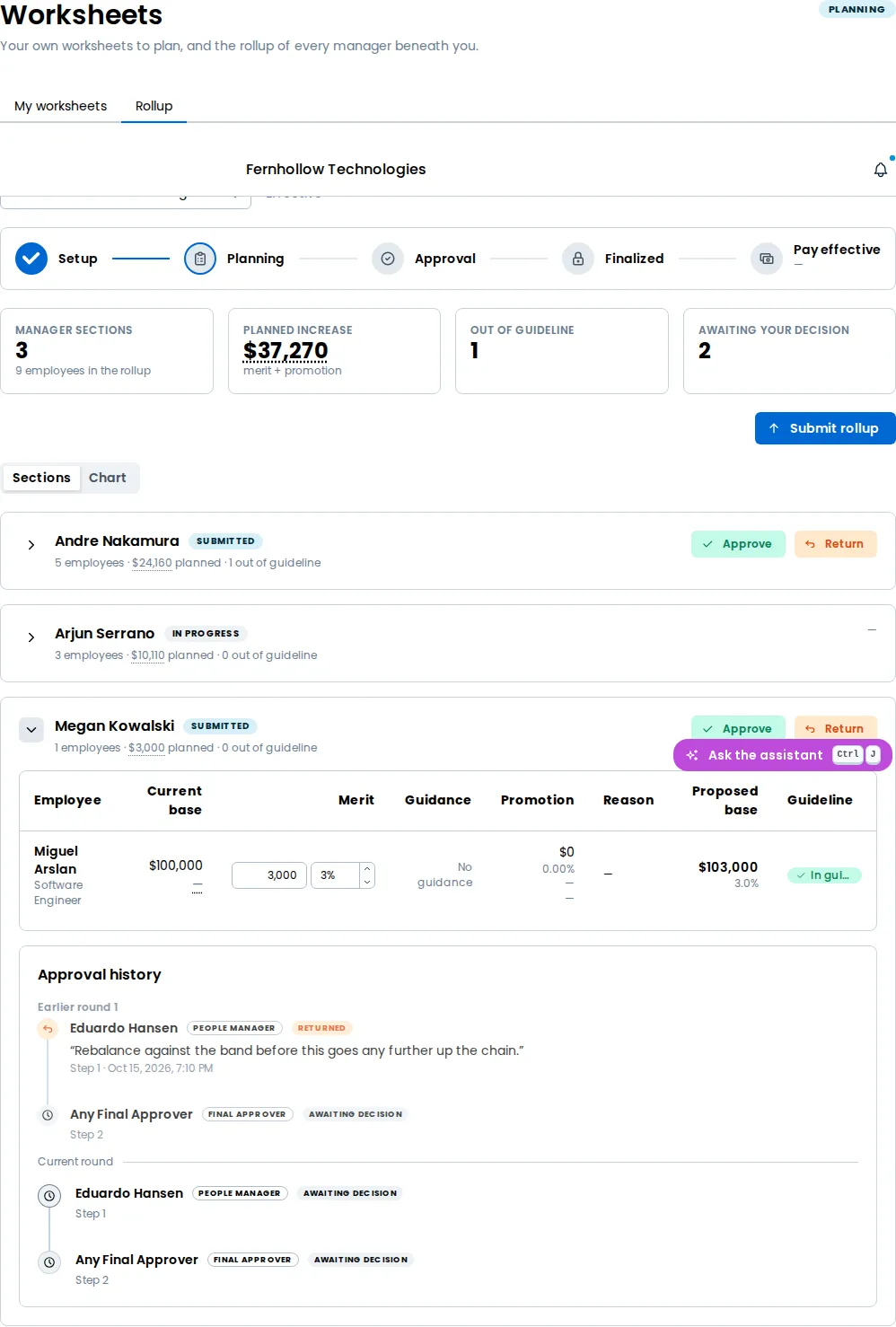
The tiles
Section titled “The tiles”- Manager sections — how many managers’ worksheets the rollup holds, and how many employees are in it.
- Planned increase — what every section plans to spend on merit and promotion.
- Planned bonus — what every section plans to grant as bonus, kept separate from the increase. It appears only when the cycle funds a bonus.
- Outside — how many proposals fall outside the guardrails.
- Awaiting your decision — how many sections are waiting on you now.
When nothing is waiting on you, the tab says so, and you can still review every section.

See the math behind a figure
Section titled “See the math behind a figure”Hover Planned increase or Planned bonus, tab to the figure, or tap it on a touch screen, and a card shows what makes it up: the employees, the planned increase and the planned bonus, on a line such as $83,898 across 18 employees in 3 sections · bonus $18,700, kept separate. A section’s planned figure in its line shows the same card for that section alone. The counts have no card.
The card never adds the bonus to the increase, and it shows no budget: the rollup has none of its own. See Reading the guidance and guardrails for how the cards work.
A section
Section titled “A section”Each section is a card for one manager: their name, the worksheet’s status, and a line such as 8 employees · $24,500 planned · 1 outside guardrails. On the right it shows what’s next — Approve and Return when the decision is yours, Release onward when you’ve approved it and it’s waiting for you to send it on, or who it’s Awaiting.
When the cycle’s carry soft or hard limits, a section whose team went past one lists that pool under its line, such as Merit $3,717 past the soft limit, with the amount over and the limit it is measured against. Under each pool is every note written for it, labelled Team note or Rollup note with who wrote it and when, or No note when none was written. A pool the team stayed inside is not listed, and a section that crossed none shows nothing extra. A flag beside the status names the limit when a team went past a hard one — see Approving or returning a worksheet.
Expand a section to read its rows: Employee, Current base with the (hover it to see the base ÷ the band’s midpoint), Merit, Guidance, Promotion, Reason (the and the ), Proposed base with the total increase, and Guardrails, the verdict. The Guidance cell shows the row’s guidance range, such as 2.5%–4%, in a cycle that plans ranges, or its guidance percentage in any other cycle. It is the same figure the manager saw on their worksheet. The Merit and Promotion cells each lead with an amount in the person’s and carry its percentage under it, to two decimals, such as $2,000 over 2.01%; they show the same pair the manager saw on their worksheet. Merit shows an em dash for the amount until the manager has entered one. The Promotion cell also shows the new grade and the new title under the percent, each an em dash when the manager hasn’t set it. A row an approver has adjusted carries Adjusted.
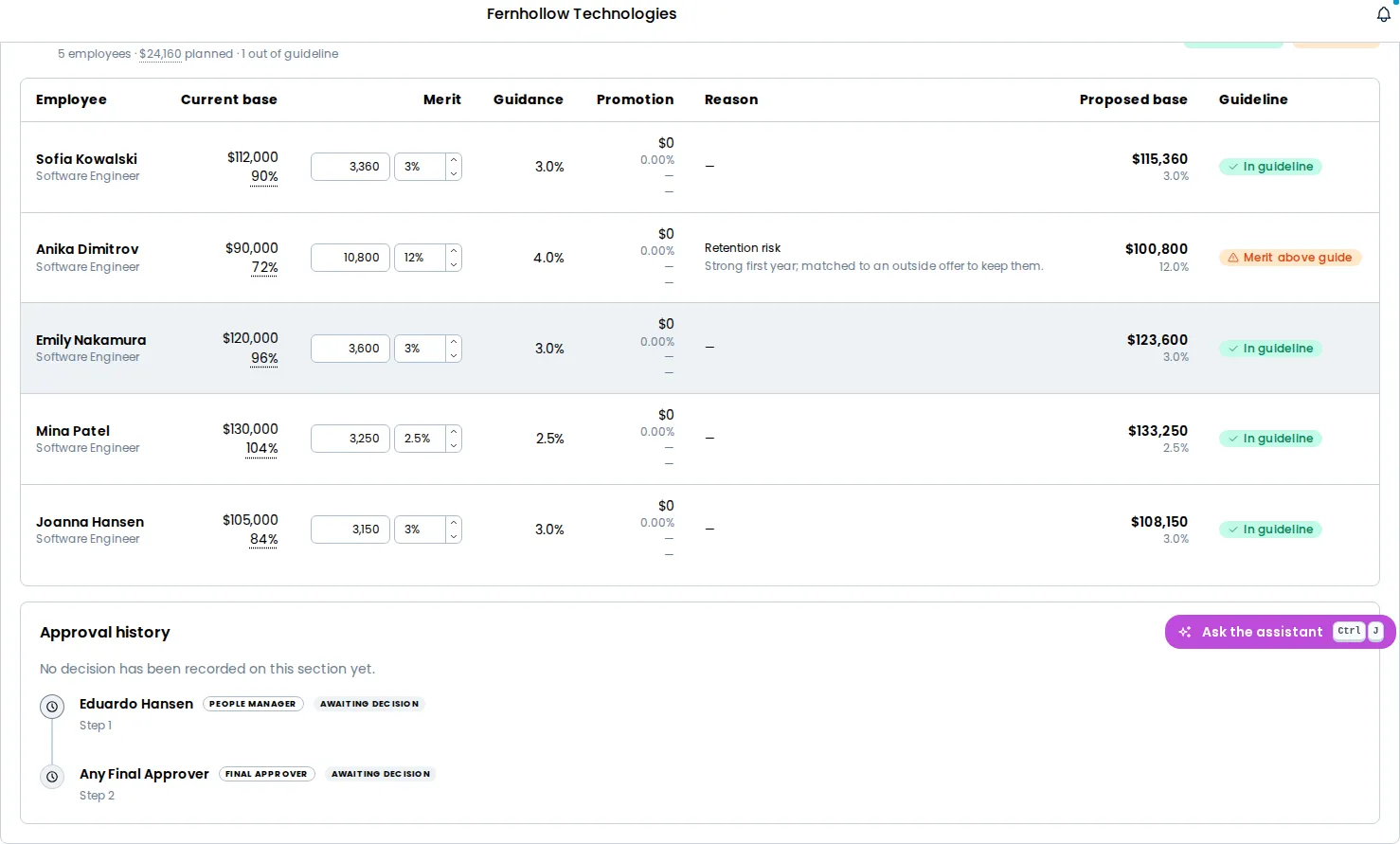
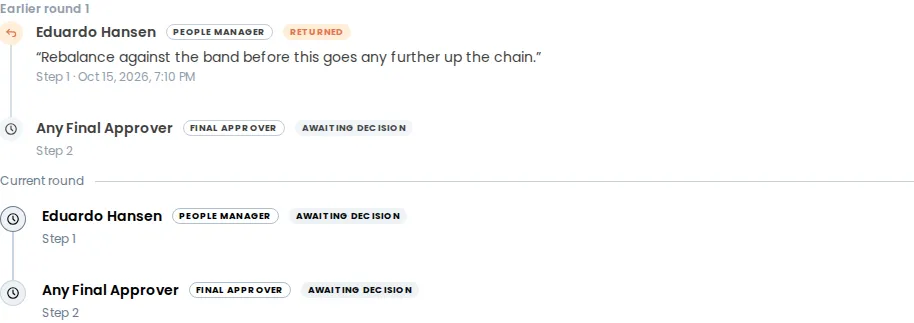
The section’s Approval history lists every decision made on it so far — each approver, their comment and the date — with earlier rounds under Earlier round and the current one under Current round.
Your own rollup, and its limits
Section titled “Your own rollup, and its limits”Above the sections, when any funding pool carries a limit, Your rollup reads each pool across your own worksheet and every worksheet beneath you, as one total: Merit is $4,240 past its soft limit, or is within its limits. This is the reading Submit rollup is judged on. One team over and another under can still pass, because the total is what counts. See Approving or returning a worksheet for what happens at Submit rollup.
See your branch as a chart
Section titled “See your branch as a chart”When the Rollup has sections, Sections and Chart appear above the manager cards. Choose Chart to see the same managers as an org chart that starts with you. Nobody above you, and nobody beside you, is drawn.
Each manager is colored by the status of their worksheet: In progress, Submitted, Returned or Approved. The line under a name says the rest, such as Submitted · awaiting you on a worksheet that is yours to decide, or Your worksheet on your own. A manager who has no worksheet is shown as No worksheet, with the manager whose worksheet plans their team. The key above the chart counts each status.
The chart opens with the first worksheet that is waiting on you already selected. If none is, nothing is selected. To look at another, select that manager. The approval chain it will travel is numbered on the chart in order, and a card under the chart lists each approver in turn, with the decisions made so far.
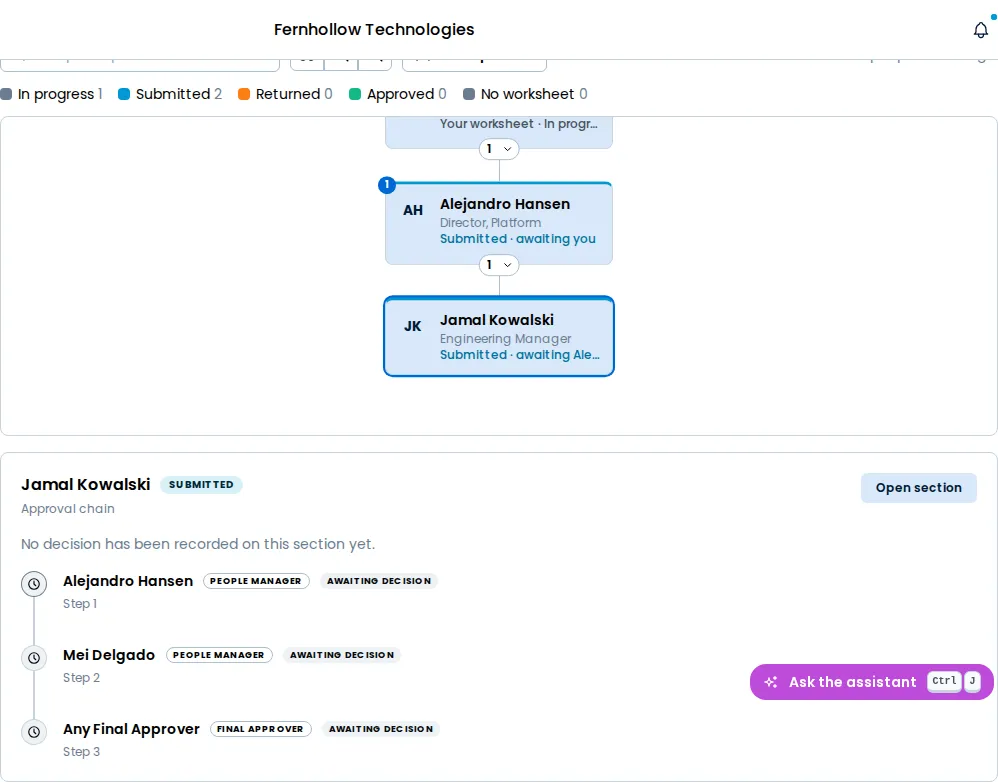
The chart draws managers only. Turn on Show employees to draw the people on their worksheets as well. An employee who is left out of the cycle is drawn with a dashed outline and the reason, such as Hired after the cutoff, or Not in this cycle when the cycle has no reason to show you. The notes an administrator wrote about an exclusion are never shown here.
To read or decide the worksheet itself, select Open section on the card. The Rollup returns to Sections with that manager’s section expanded and in view.
If you have no managers beneath you, the Rollup shows its usual message and neither Sections nor Chart.
What you can change
Section titled “What you can change”Nothing on a manager’s worksheet but their proposals’ merit increases, as an amount or a percentage, and those only while the worksheet is Submitted. Everything else is theirs. See Reviewing a rollup worksheet.