
Creating your workspace
Create a Mitratech Comp workspace for your company, with its own address your team signs in at. You need your work email address, because you’ll confirm it with a code we send there.
Sign up
Section titled “Sign up”- On the Mitratech Comp home page, select Sign Up Free.
- On Create Account, fill in Email, First Name, Last Name and Company Name.
- Check . It fills itself in from your company name as you type, and the full address it makes is shown beneath the field. Change it if you’d like another; leave it empty and we’ll choose one from your company name.
- Choose a Password and type it again in Confirm Password. A checklist beside the field shows each password rule as you meet it.
- Select Create Account.
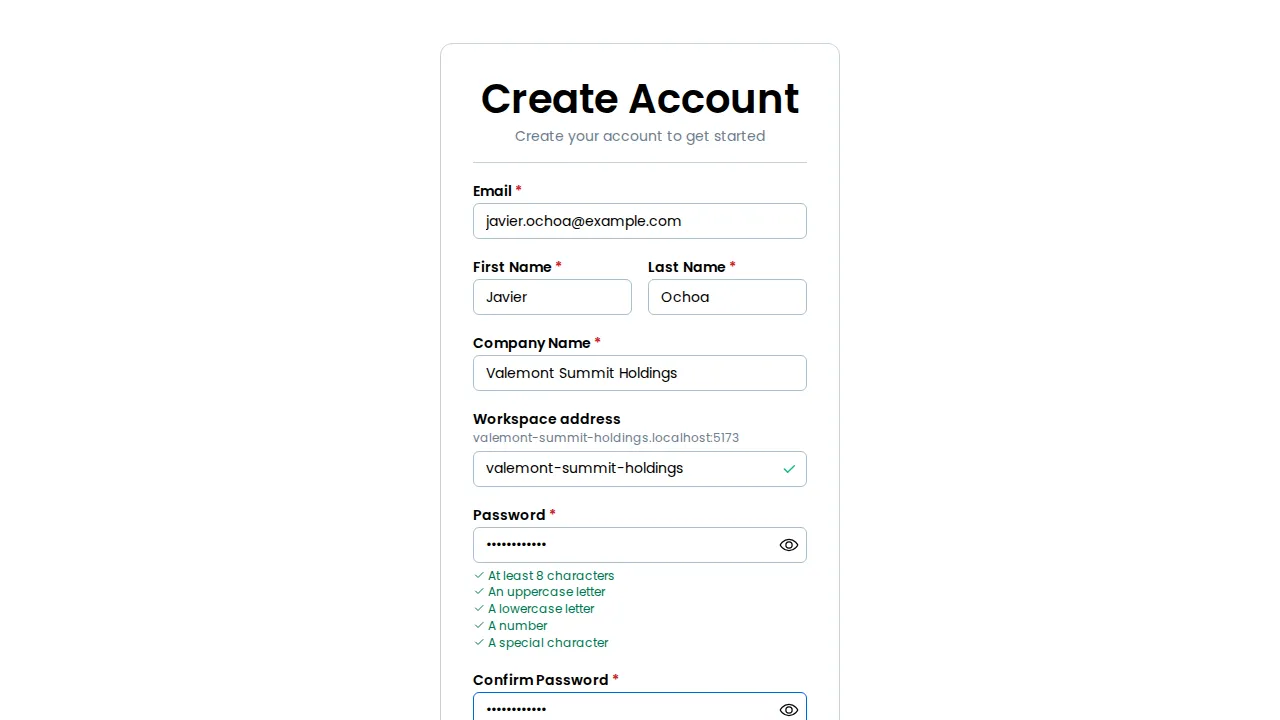
A workspace address is 3 to 63 lowercase letters, numbers or hyphens, and it can’t be a word we reserve. The field tells you as you type whether the address you’ve chosen is available.
Confirm your email
Section titled “Confirm your email”We email you a six-digit code. On Verify Your Email, type it into the boxes and select Verify Account.
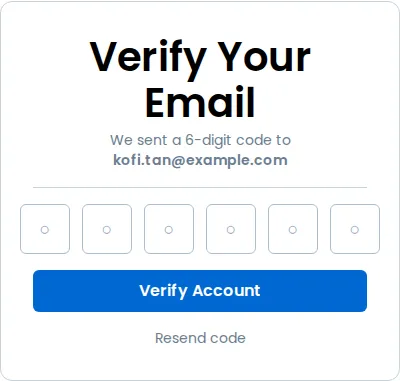
- The code lasts 30 minutes.
- Resend code sends a fresh one. You can ask once a minute, and the control counts down until you can ask again.
- After five wrong codes the code stops working. Select Resend code and a new one arrives straight away.
- If someone else claimed your workspace address while you were confirming, we ask you to Choose a different workspace address. Pick another and verify again, with the code you already typed.
What happens next
Section titled “What happens next”Confirming your email creates the workspace and signs you in to it at its own address, so you don’t type your password again. If that last step can’t finish, the page offers Sign in with the password you chose: select it and sign in there. See Signing in.
You are the workspace’s and its first System Admin. Understanding roles says what that lets you do, and Transferring account ownership covers handing ownership to someone else later.
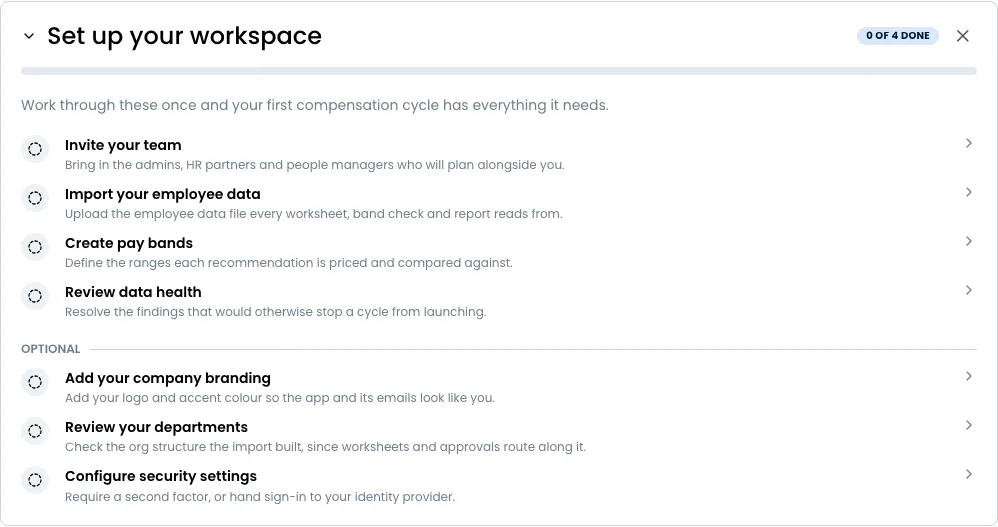
Home opens with Set up your workspace, a checklist of the first things to do, starting with inviting your team. Adding your branding is optional, so it sits under Optional with the other steps you can leave for later. The Quick start walks the same ground from beginning to end.
You can sign up again with the same email address to create a second workspace. Each one is separate, with its own address, its own members and its own password for you.
If your workspace signs in through WCP Hub
Section titled “If your workspace signs in through WCP Hub”A workspace on WCP Hub isn’t self-serve: Mitratech creates it for your company, with its address taken from your Hub subdomain. The first Hub admin to sign in becomes its account owner and first System Admin, and the address can’t be renamed from the workspace. See Mitratech Comp on WCP Hub.