
Updating employee data
Keep your true between cycles: import a fresh file for many changes, or edit one employee’s record by hand. You need the System Admin or Total Rewards Admin , and employee data already in the workspace — see Importing employee data.
Import again
Section titled “Import again”A new import runs the same way as the first, and it only adds to what is there.
- A row is matched to an employee by work email. A known address updates that employee; a new one adds an employee.
- A blank cell changes nothing, with one exception: a blank
performance_ratingcell now leaves the employee unrated on the review the import lands on, rather than keeping the rating they held before. The employee keeps every other column’s value they already have, so a file only needs the columns you mean to change. - Nobody is removed. An employee missing from the file keeps their record exactly as it was.
- A row marked
terminatedrecords the employee as terminated, and turns off their sign-in to the workspace if they have one. - Importing the same file twice changes nothing the second time: every row is counted as skipped.
A correction to someone’s rating re-imports onto the same : in the import review, add to the existing review rather than starting a new one. See Performance reviews.
To start from what the workspace already holds, open People in the sidebar, and select Export CSV on its Employees tab. It downloads your employee data in the import’s own columns, so you can change it in a spreadsheet and import it back.
Edit one employee by hand
Section titled “Edit one employee by hand”- In the sidebar, select People.
- On the Employees tab, find the employee by name, email or title, and open their profile.
- Select Edit in the profile’s header. In Edit person, change their name, work email, department, manager, dotted-line managers, title, phone, location, , pronouns, employment status, start date or birthday.
- Select Save.
Pay and arrive with an import. Add person on the People page adds one employee by hand, and Delete person, in the ⋯ menu of an employee’s profile, removes them once you confirm.
See where someone sits in the organization
Section titled “See where someone sits in the organization”On an employee’s profile, select the Reporting tab. It draws the line of managers above them, the employee highlighted, and the people who report to them directly, as an org chart. Select anyone on it to open their profile. Direct reports above the chart counts the people who report to them directly, and how many people are in their organization in all. The employee’s dotted-line managers, if they have any, are listed under the chart as links; the chart does not draw them.
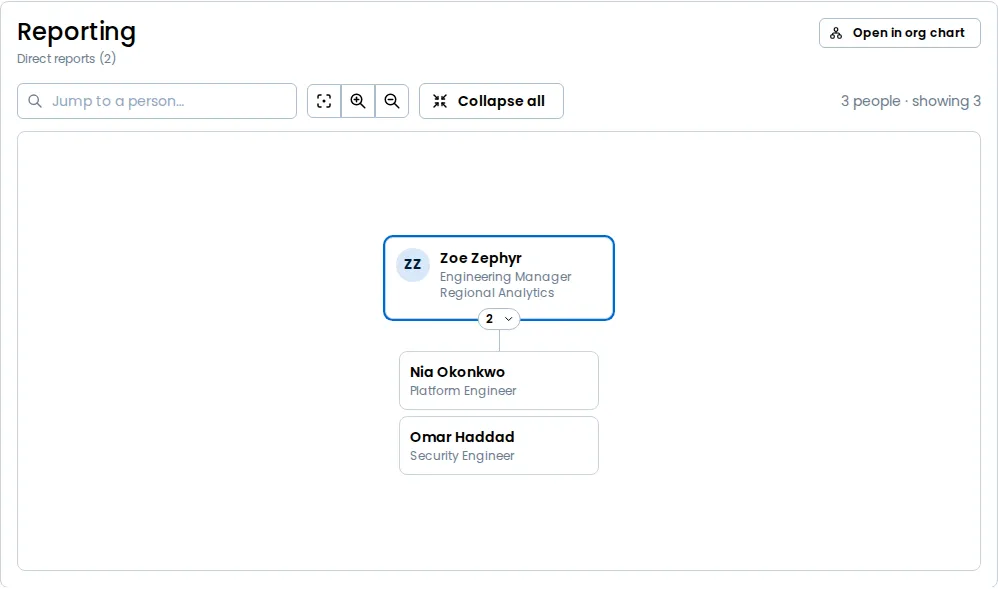
Select Open in org chart to see the same employee among their peers on People, centered on them.
See the whole organization
Section titled “See the whole organization”On People, choose Chart at the end of the row of filters to see your employee data as an org chart, drawn from each person’s manager. Every member can open it. See Reading the org chart.
Check what still needs fixing
Section titled “Check what still needs fixing”The Data hub opens with a one-line verdict on your employee data — no open issues, warnings to review, or blockers to fix — beside how many employees you have, how many are unrated and when you last imported. Review findings takes you to its card, which lists what is wrong with your employee data, such as an employee with no manager, a reporting line that loops back on itself, or the same person recorded twice. Each finding is a Blocker or a Warning. An open blocker keeps a cycle from launching; a warning never does.
- Fix opens the employee’s record for editing.
- Dismiss sets a finding aside, once you say why. A dismissed finding shows who dismissed it, when, and the reason they gave, and the dismissal is recorded on the employee’s history. Show dismissed lists the ones you set aside, and Restore brings one back, which is recorded too.