
The manager worksheet, explained
Find your and learn what each part of it tells you before you plan. You need the People Manager , reports of your own, and a your compensation team has launched.
Open your worksheet
Section titled “Open your worksheet”- In the sidebar, select Worksheets. It opens on the My worksheets tab.
- Choose the cycle in Cycle. The page lists the worksheets you own in that cycle, with each one’s Status, when it was Submitted and when it was Decided.
- Select your name to open the worksheet.
If the cycle hasn’t launched yet, the page says so: no worksheets exist until launch.
A worksheet is always in one of four states, shown on its status badge:
| Status | What it means |
|---|---|
| In progress | You’re planning. Every change you make is saved. |
| Submitted | You’ve sent it for approval. It’s read-only to you. |
| Returned | An approver sent it back with a comment. You can change it and submit again. |
| Approved | Every approval step has approved it. |
You can also open it from Home, where Needs you lists Plan your team’s increases once per active cycle, naming the cycle, with Open.
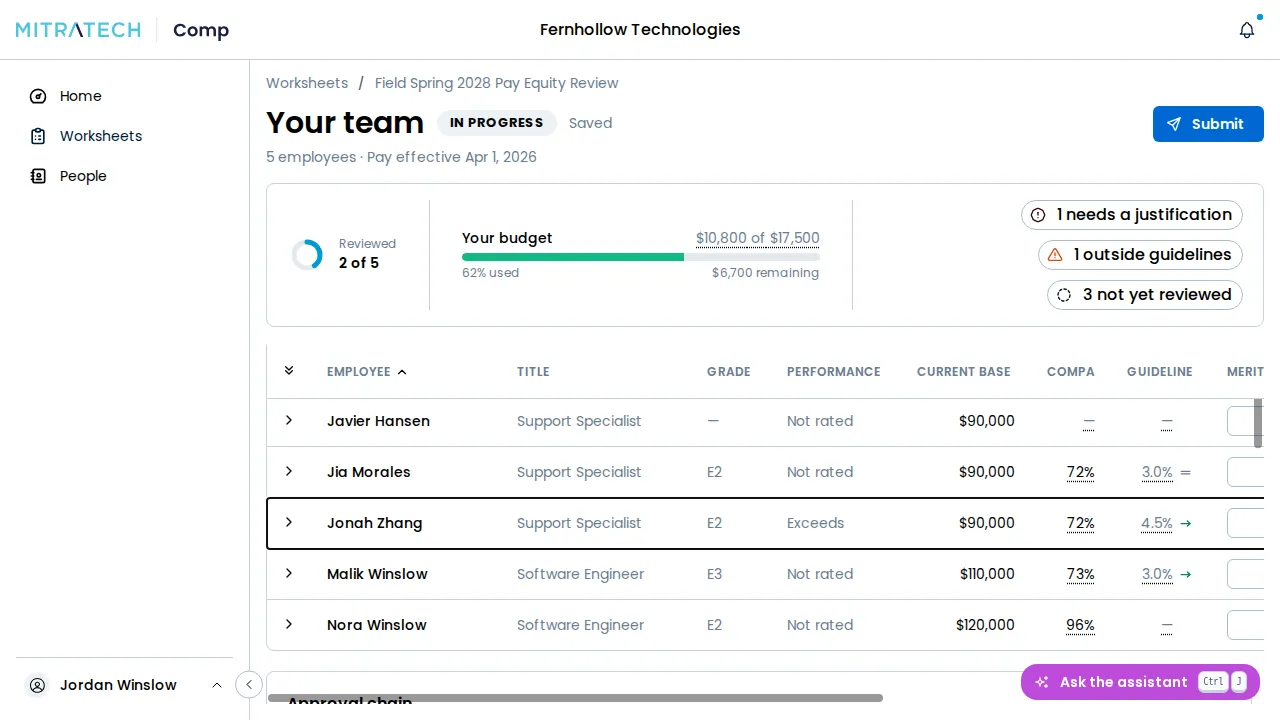
A worksheet for a team of five, as its manager sees it: the header and the summary strip above the table, with the first rows of the team below.
The header
Section titled “The header”The header names the worksheet — Your team on your own — with its status badge and a line of facts: how many employees it plans, the deadline, when it was submitted, and the . The one action its state calls for sits beside it: Submit, or Resubmit once it’s been returned.

The summary strip
Section titled “The summary strip”A strip pinned above the table stays in view as you scroll:
- Reviewed counts the people you’ve decided, such as 1 of 2. A row counts once you’ve entered or accepted a number for it.
- Your budget shows what your team’s plan spends against its allocation, and the amount remaining or over budget. A cycle that also funds a bonus or promotion pool shows that budget beside it. It reads No pool funded for this cycle when there’s no pool to spend from.
- Chips count the rows that need attention: how many need a justification, how many are outside , and how many are not yet reviewed. Select a chip to open the next row it counts, on whichever page it’s on, and bring it into view. The strip counts your whole team, not just the page you’re on. When there’s nothing left, the strip reads Every row is reviewed and within guardrails.

The table
Section titled “The table”Each row is one person on your team: Employee, Title, Grade, Performance, Current base, Compa, Guidance, Merit ($), Merit (%), Increase, Proposed base and Status. Select any column heading to sort by it: sorting orders your whole team and takes you back to the first page. A row with a promotion carries a Promotion badge beside the person’s name, whether or not their row is open.
At the end of the list, on the last page, a report the cycle left out — Hired after the cutoff, or Excluded by your compensation team — appears greyed out with that reason. You don’t plan them, their rows don’t open, and they aren’t counted in the summary strip or in the footer’s total. See Defining who is eligible.
Compa is the person’s . Guidance is the increase the cycle’s suggests for them. Merit ($) and Merit (%) are where you enter your own, as an amount or as a percentage: type in one and the other is worked out beside it. Increase and Proposed base are worked out from what you enter, every time it’s saved — you never calculate them. Status says whether the row is within guardrails, outside them, needs a justification, or is not reviewed yet.

A person’s details
Section titled “A person’s details”Select a row to open that person’s details directly under it, across the full width of the table. The rest of the page of your team stays in view above and below them. The details show only what the row doesn’t:
- Pay position — their compa-ratio, and last increase, and the compa-ratio and range penetration after the increase, each drawn on a rail: the compa-ratio against 0.60 to 1.40, the range penetration against the ’s minimum, midpoint and maximum.
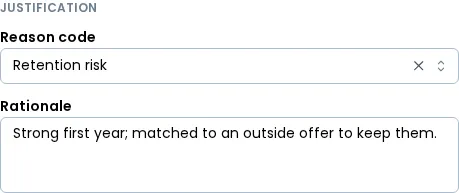
- Justification — the and for this proposal.
- Guidance — what the merit matrix suggests and why, with Reset to guide.
- Promotion when the cycle funds a promotion pool, and Bonus when it funds a bonus pool. Either can be entered only on a cycle that funds that pool; a cycle that doesn’t leaves it out of the details.
- Compensation history — their earlier pay changes, across the full width below, then when the row was Last changed.
Pay position and Justification sit on the left, Guidance, Promotion and Bonus on the right. The current base, the merit, the increase, the proposed base and the status are in the row, so the details don’t repeat them: you enter the merit increase in the row’s Merit ($) or Merit (%) field.

Justification sits under Pay position, with the reason code and the rationale.
Open and close a row
Section titled “Open and close a row”- To open a row, select it anywhere outside its own fields and buttons, or select its chevron or its Status. Pressing Enter or Space on a row that has focus does the same.
- One row is open at a time: opening another row closes the one that was open.
- To close the open row, select it, its chevron or its Status again, or press Escape. Keyboard focus goes back to the row.
Closing a row loses nothing: each value saved when you left its field. A worksheet opens with no row open, unless its address names one — see Link to one person.
On a worksheet that’s read-only to you, rows still open and you can still move between pages, but nothing in the details can be changed.
Open every row on a page
Section titled “Open every row on a page”Select the chevron in the first column’s heading (Expand all) to open every row on the page. It becomes Collapse all, which closes them again. While every row is open, selecting a row opens or closes that row alone. Moving to another page, changing the page size or sorting collapses them.
A team of more than 10 shows 10 people a page, with a footer under the table. Rows per page sets 10, 25 or 50, and the worksheet remembers your choice the next time you open it. The footer says which rows you’re seeing, such as 1–10 of 23, and its page buttons move between pages. A team of 10 or fewer has no footer.
Moving to another page, changing the page size or sorting closes every open row, and sorting takes you back to the first page. The summary strip, Your budget, Submit and Review before you submit always count your whole team, not the page you’re on.
Link to one person
Section titled “Link to one person”The address in your browser names the person whose row is open and the page you’re on, so you can reload the page, or copy the link to send to someone, and land on the same row. A link opens that person’s row on their page. A link to someone who isn’t on the worksheet opens it with no row open. A link gives no access of its own: whoever opens it sees only what they already could.
Keyboard
Section titled “Keyboard”- Enter or Space on a focused row opens or closes it.
- Up and Down on a focused row move focus to the row above or below, without opening it.
- Escape closes the open row from anywhere on the page, and focus goes back to the row. Inside a field, the first Escape leaves the field and the second closes the row. A dialog or an open list keeps its own Escape, and the row stays open underneath it.
The approval chain
Section titled “The approval chain”The card lists who decides your worksheet after you submit it, in order: each manager above you who plans in the cycle, then Any Final Approver. Each step reads Awaiting decision, Approved or Returned.

Who else sees it
Section titled “Who else sees it”Only you can change your worksheet. The approver it’s waiting on, the administrators who run the cycle, and approvers who have already decided it can open it read-only, and they see a notice that says so. The one exception is a manager above you, who can adjust a person’s merit increase while your worksheet is submitted, by an amount or a percentage; the worksheet tells you who changed what, from and to.
Next: Entering a merit increase.