
Reviewing an import
Read what an import will do with your file, decide the few things it asks, then approve it or reject it. Nothing is written until you approve. You need the System Admin or Total Rewards Admin , and an import showing Awaiting review — see Importing employee data.
An import that reaches Awaiting review opens in a review of up to six steps. The stepper along the top names each one and what is left on it:
- Extra columns — the columns in your file that the import template doesn’t have.
- New people — the rows that add someone.
- Updates — the rows that match someone you already have.
- — where the ratings in your file go. This step appears only when the file has a
performance_ratingcolumn. - Problems — the rows that can’t be imported, and the rows that import with a warning.
- Review and approve — the whole import on one page, and the button that starts it.
Select a step in the stepper, or use Back and Next in the step’s header, to move between them. Nothing stops you from moving on and coming back. A step the file leaves empty reads None in this file, and Back and Next skip it. The stepper says what each step still needs from you, such as 3 to confirm.
Your decisions are saved as you make them
Section titled “Your decisions are saved as you make them”Each decision is saved the moment you make it, and every other administrator who opens the same import sees it. Leave and come back, or pick the review up on another computer, and it is where you left it. If two administrators work on one import, a decision made by one reaches the other when they return to the tab.
Decide the extra columns
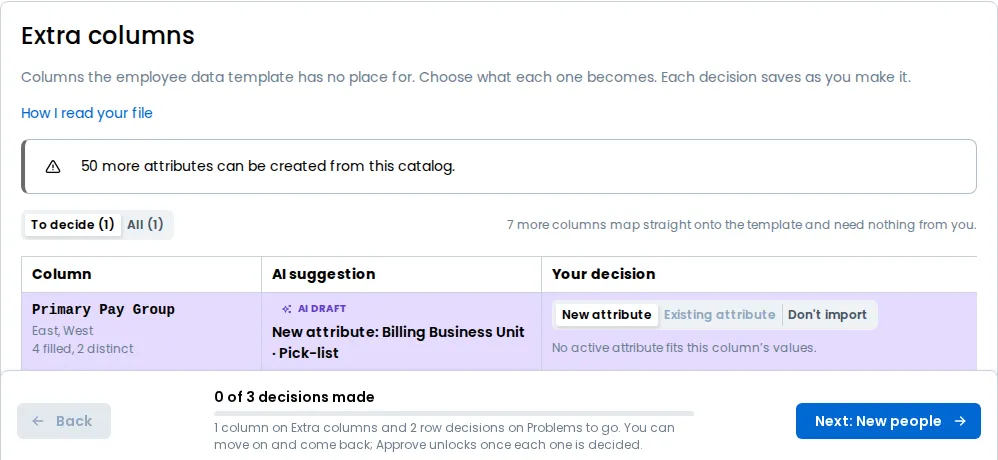
Section titled “Decide the extra columns”Every column the template doesn’t have is listed on Extra columns, one line each, with sample values from your file. Choose what each column imports as in its Import as list:
- New attribute — create a custom attribute from the column. The line then reads its name and type, such as “Class Year · New pick-list”.
- An existing attribute — fill one you already have. The list offers only the attributes every value in the column fits.
- Don’t import — leave the column out.
Select a column’s line to open its details: its most common values and how many rows hold each, how many rows fill it, how many distinct values it has, and the lowest and highest value of a column of numbers. A new attribute’s name and type are there too. Choosing New attribute opens the details with the name ready to type. A type that doesn’t fit every value isn’t offered, and the list says why, such as “Number: 1 cell doesn’t fit, e.g. TBD”. The details also say how many custom attributes your account has room for once the import creates its new ones, such as “49 of 50 left”.
A column you haven’t answered reads Not reviewed, or shows Confirm if the AI made a suggestion for it, and Approve and import stays locked until every column is decided. To confirm lists only those columns, and All lists every one. How I read your file shows how the import read your spreadsheet. A file already in the import’s own columns says it already matches the import template.
Work with the AI’s suggestions
Section titled “Work with the AI’s suggestions”The AI reads your file when it is analysed and drafts what it can: what each extra column becomes, and a fix for some of the rows that can’t import. Nothing it suggests takes effect until you decide. The AI drafts and you decide, and each of your answers is recorded in the . Whatever the AI wrote is marked AI draft.
Confirm or change a column
Section titled “Confirm or change a column”An extra column the AI made a suggestion for starts with its Import as list on that suggestion, such as “Employment type · New pick-list”, and the list marks it Suggested. Open the column’s details to read the AI’s reason. Then either:
- Select Confirm to accept the suggestion exactly as shown. The column reads Reviewed.
- Choose something else, rename the attribute, or change its type. That is your decision, and the column reads Reviewed with no Confirm needed. Its details say what the AI suggested, and Reset takes your decision back, so the column shows Confirm with the suggestion in place again.
Confirming and choosing otherwise both count as a decision, and the stepper’s count moves. Once your account has all 50 custom attributes it can have, an alert above the columns says so, New attribute can’t be chosen, and a suggestion of a new attribute can’t be confirmed: choose an existing attribute or Don’t import instead. A column the AI made no suggestion for reads Not reviewed until you choose, as above.
Apply or decline a fix
Section titled “Apply or decline a fix”The AI explains the problem rows it read on Problems, up to the first 200, and says how many it did not read. Those rows show only the check’s own message. Where the file itself says what a value should be, the AI also suggests a fix, such as the work email a mangled address was meant to be. The step opens on To decide, the rows with a fix you haven’t answered. All adds the rows you have answered and the rows with no fix. Choose one answer for each fix:
- Apply fix — the row imports with the AI’s value. It moves to New people or Updates, where it reads Fixed by you. With Show every column on, the cell the fix wrote is tinted, with the value it replaced under it.
- Keep skipped — the row stays out of the import.
- Import without manager — on a warning about a manager’s email, the row imports with its manager left as it was.
Either answer is a decision. Select Undo on the row to return the fix to To decide, wherever the row is listed. A row with an explanation but no fix, or with no explanation, asks nothing of you. The AI never suggests a pay value: a row with an invalid salary has its explanation and no fix, and you correct your file.
Read the AI’s summary
Section titled “Read the AI’s summary”New people, Updates and Problems each open with a short summary of what the step holds, and Review and approve opens with a summary of the whole import. The AI writes the sentences, and the product fills in every figure from the same counts the page shows. The summary is marked AI draft. If the AI can’t write it, the page shows the same figures in sentences the product wrote, without the badge. Review and approve shows its summary once every suggestion has your decision, and the Approve and import confirm repeats it.
Read the people it adds and updates
Section titled “Read the people it adds and updates”New people lists every row that adds a person. Updates lists every row that matches someone you already have, and shows only the fields it changes, from the old value to the new. Filter Updates by With changes, No changes or Skipped by you. Search covers the whole step, not only the page you’re on, and a step shows 100 rows at a time.
Each step shows the fields that matter by default. Turn on Show every column to see your whole file, with the header you gave each column under its name. A changed cell is tinted blue, and a problem cell red.
Skip a row
Section titled “Skip a row”Every row that can import has an Import tick. Clear it to skip the row: it won’t be added or updated. Tick it again to bring it back. A skip is saved at once, like any other decision, and Skipped by you counts them on Review and approve.
Rows that can’t import, and rows with a warning
Section titled “Rows that can’t import, and rows with a warning”Problems lists each row the import can’t use, with the reason and the cell at fault. A row with a problem is left out, and the others aren’t held back. The checks run at review, so you see every one before you approve. They include:
- a work email that is missing, malformed or repeated in the file;
- a new person without a first and last name;
- a value in a pick-list column that you left out;
- a rating value with no place on the review.
Correct the file and upload it again if you want those rows in.
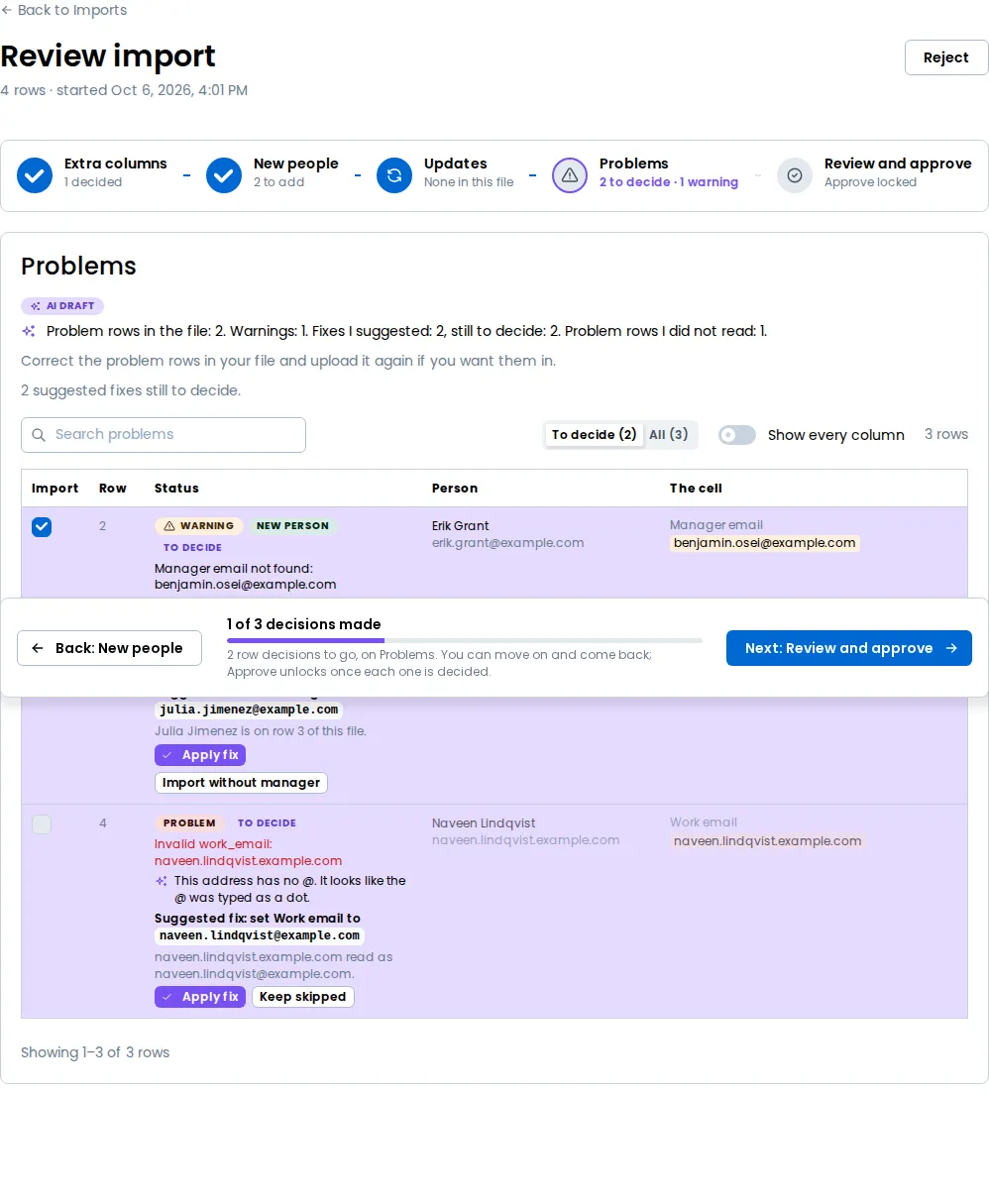
Two cases are warnings, not problems, because the row still imports: a manager’s email that isn’t found, and a person named as their own manager. The row imports without that change to its manager, and the warning says so. A warning row appears on Problems and on its own step, and you can skip it like any other row. When the AI can tell who the manager should be, it suggests that address as a fix, and you choose Apply fix or Import without manager.
Check it and approve it
Section titled “Check it and approve it”Review and approve shows what the import will do. Six figures sum up the file:
- Rows in file
- New people
- Updates
- Problems
- Skipped by you
- Will import
Under them, Your decisions has a line for each step with what you decided on it, and what the AI’s suggestions on that step still owe. Select Edit on a line to go back to that step. A step that owes a decision reads how many, and its button reads Go to step: it opens the step on what is left: To confirm on Extra columns, To decide on Problems.
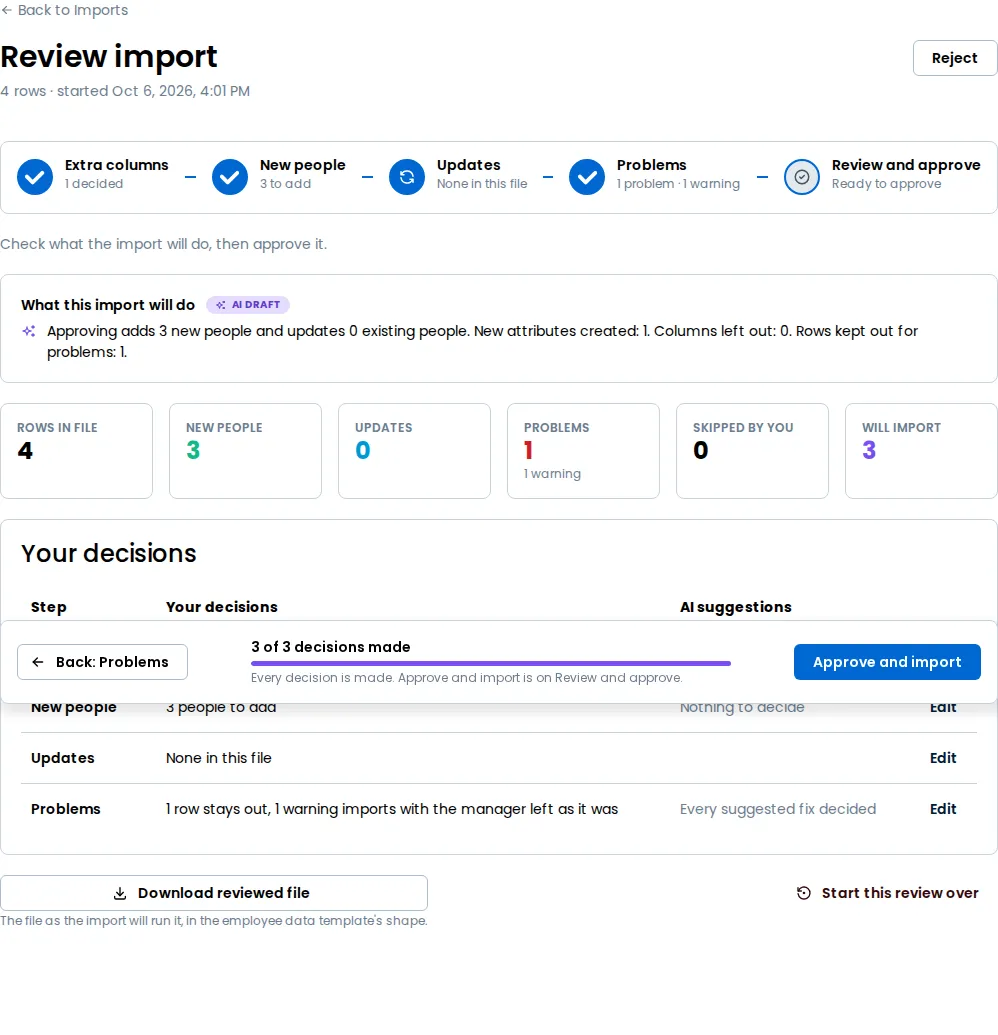
To read the file the import will run, select Download reviewed file. It holds the rows that will import, in the ’s shape, and leaves out the rows that can’t. If your role can’t see pay, it leaves out the pay columns.
To make every decision again, select Start this review over and confirm. Every decision goes back to To decide, the rows you skipped come back, and the review opens on its first step, Extra columns unless the file has none. Anyone else reviewing the import sees the reset too.
Approve and import is locked while any decision is open, including each AI suggestion, and says “Decide every AI suggestion first”. While any is open, Review and approve says how many decisions are left and shows no summary. It reads “Every row is skipped” when nothing would import. Select it and the confirm repeats the AI’s summary, or the same figures in the product’s own sentences, and says how many rows, such as Approve and import 72 rows. Confirming approves that number of rows.
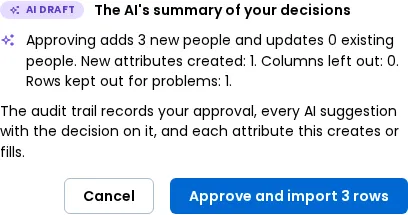
If another administrator changes the review before you confirm, the import isn’t started. The confirm says The review changed since you last looked, and what the import would now do, such as “It now imports 71 rows, not 72.” Select Check the review to look again, or approve the new number. The import stays at Awaiting review until you do.
After you approve
Section titled “After you approve”The page shows Importing approved rows… until it finishes. When it reaches Import complete, it reports how many employees were Created, Updated and Skipped, and how many rows ended in Errors. A row the review kept out was never part of the import, so it isn’t an error here. A row counts under Skipped when it changes nothing. Full report downloads the complete list.
A check on a dotted-line manager’s email still runs only now, because it needs the finished directory: the email has to belong to someone. A row that fails it is listed under Row errors.
The finished import then asks you to confirm who plans compensation, suggested from the reporting lines it has just written.
Reject it
Section titled “Reject it”If the file is wrong and you’d rather fix it, select Reject. A confirm asks first: “Reject this import?”. Nothing from the file is imported and every decision on the review is discarded. Confirm with Reject import, and the audit trail records that you did.
Nothing is written: no employee and no department changes. You return to the list, where the import shows Rejected. Open it and it says “Nothing was written. Adjust the file and try again.” Its Approve and import and Reject controls are gone, so the decision stands. Correct the file and start a new import.
Find an import again
Section titled “Find an import again”Back to Imports returns to the list of Recent imports, which shows every import with when it started, its status, and its Rows, Created, Updated and Errors. Selecting an import that is still at Awaiting review opens its review. A rejected import stays on the list, with nothing created or updated.
| Status | What it means |
|---|---|
| Queued | Waiting to start. |
| Analyzing | Reading the file. |
| Awaiting review | Waiting for you to approve or reject it. |
| Approved, Importing | Writing the approved rows. |
| Completed | Finished. |
| Rejected | You declined it, and nothing was written. |
| Failed | It could not finish. The import says why. |