
Product updates and tours
is a list of what each release added for your . Some updates start a , a guided walk through the feature on example data. Once it’s on for your workspace, everyone who signs in sees the list. A tour changes nothing in your workspace.
Product updates is being switched on workspace by workspace. If you don’t see it at the foot of the navigation yet, it hasn’t reached your workspace.
Open Product updates
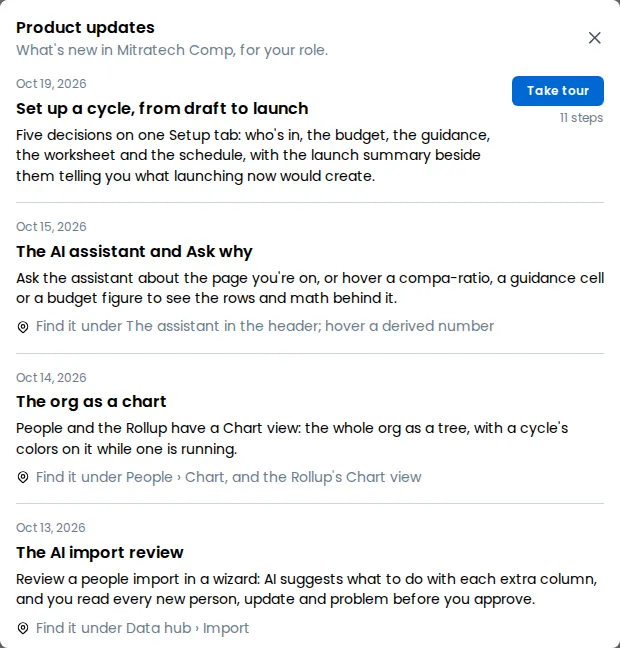
Section titled “Open Product updates”Select Product updates at the foot of the navigation, above your profile. It opens over the page you’re on, so you stay where you were, and closing it leaves you there. When the navigation is collapsed to icons, hover the Product updates icon to see its name.
What the list shows
Section titled “What the list shows”Updates are listed newest first. Each has its release date, a title and a short description.
You see only the updates for your role. A System Admin or Total Rewards Admin sees all of them. Other roles see the updates that apply to them, and if there are none yet, the list says Nothing new for you yet. When a System Admin uses View as, the list is the one the person they’re viewing as would see.
There’s no unread badge and no count. The list never opens by itself.
An update either has a tour or tells you where to find the feature:
- With a tour, it has a Take tour button and a caption with the number of steps.
- Without one, it says where to find the feature, such as Find it under Data hub › Import.
Take a tour
Section titled “Take a tour”Select Take tour on an update. The window closes and the tour opens on the first page of the feature, with a banner across the top and the first step beside the part of the page it explains.
A tour is available to the roles it’s written for. The Cycle setup tour is for System Admins and Total Rewards Admins, so other roles don’t see its button.
A tour runs on example data
Section titled “A tour runs on example data”The banner reads Tour · Cycle setup. Example data. Nothing you do here is saved. It stays in view for the whole tour.
Everything you see during a tour is example data, such as the example cycle in the Cycle setup tour. Whatever you click, nothing is written to your workspace, nothing reaches the , and no email or notification goes out. When the tour ends, your own data is back.
Move through the steps
Section titled “Move through the steps”Each step shows the name of its section, a title and an explanation, and where you are as 1 of 11. The rest of the page is dimmed and can’t be clicked, and clicking the dimmed area does nothing.
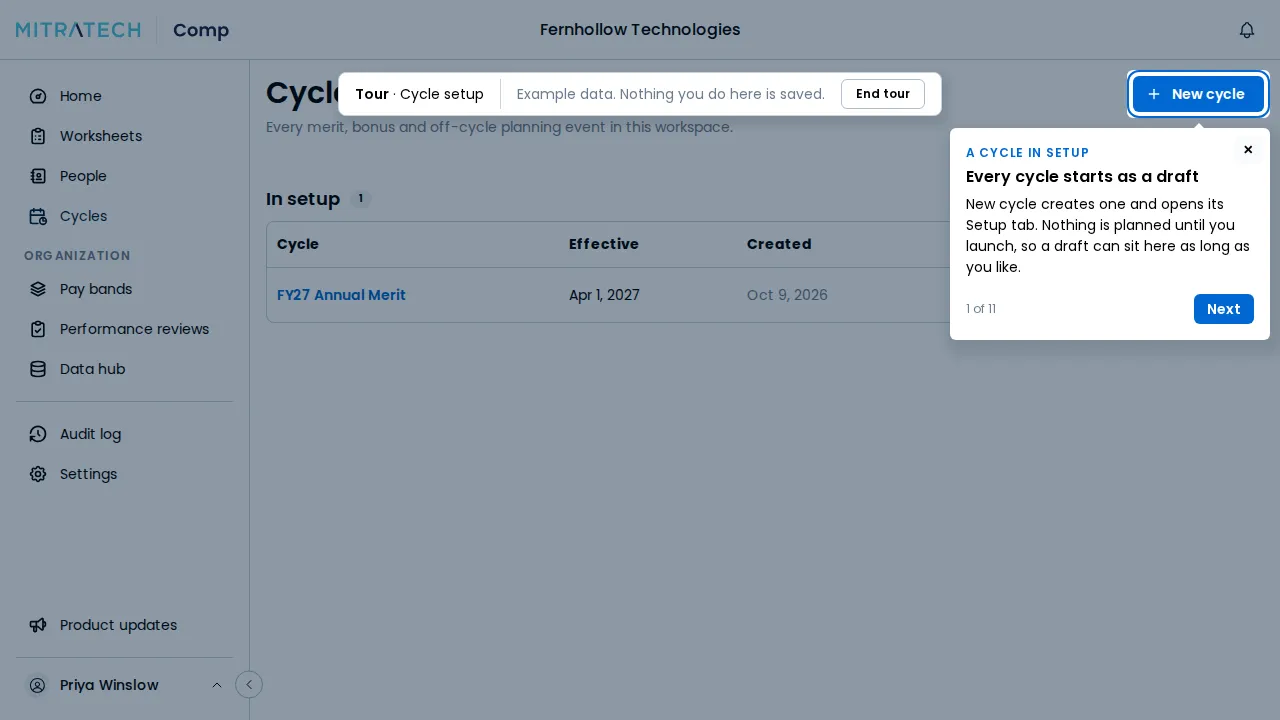
- Select Next to go on and Back to return. The first step has no Back, a few steps near the end of a tour have none either, and the last step has Done in place of Next.
- On some steps the popover asks you to click the highlighted control, such as Continue setup or Launch cycle, and shows Click … to go on instead of Next. Click the control to go on. It does what it normally does, but on the example data.
Use the keyboard
Section titled “Use the keyboard”| Key | What it does |
|---|---|
| → | Goes to the next step. It does nothing on a step that asks you to click. |
| ← | Goes to the previous step. |
| Tab | Moves between the buttons in the popover. Focus stays inside it. |
| Esc | Ends the tour. |
If your computer is set to reduce motion, the highlight and the popover appear in place instead of sliding.
End a tour
Section titled “End a tour”You can end a tour at any point. It doesn’t ask you to confirm.
- Select Done on the last step. A message says Cycle setup tour complete. The example cycle is gone and your own data is back.
- Select × on the popover, select End tour on the banner, or press Esc. A message says Tour ended. Your data is back. Take it again any time from Product updates.
Either way, you land back on the page you started from.
Leaving a tour any other way, such as with the browser’s Back button, ends it the same way. If you reload the page, you see your own data and no tour.
If a page has changed so much that a step can’t find what it points at, the tour ends and says which step it reached, for example This tour needs an update. It ended at step 5 of 11. Your data is back. Your data is untouched.
You can take any tour again from Product updates. The Cycle setup tour covers what Creating a cycle and Launching a cycle explain in full.