
Monitoring budget and approvals
Follow a live cycle’s money and its approvals from one page. You need the System Admin or Total Rewards Admin , and a launched cycle — see Launching a cycle.
The Worksheets tab
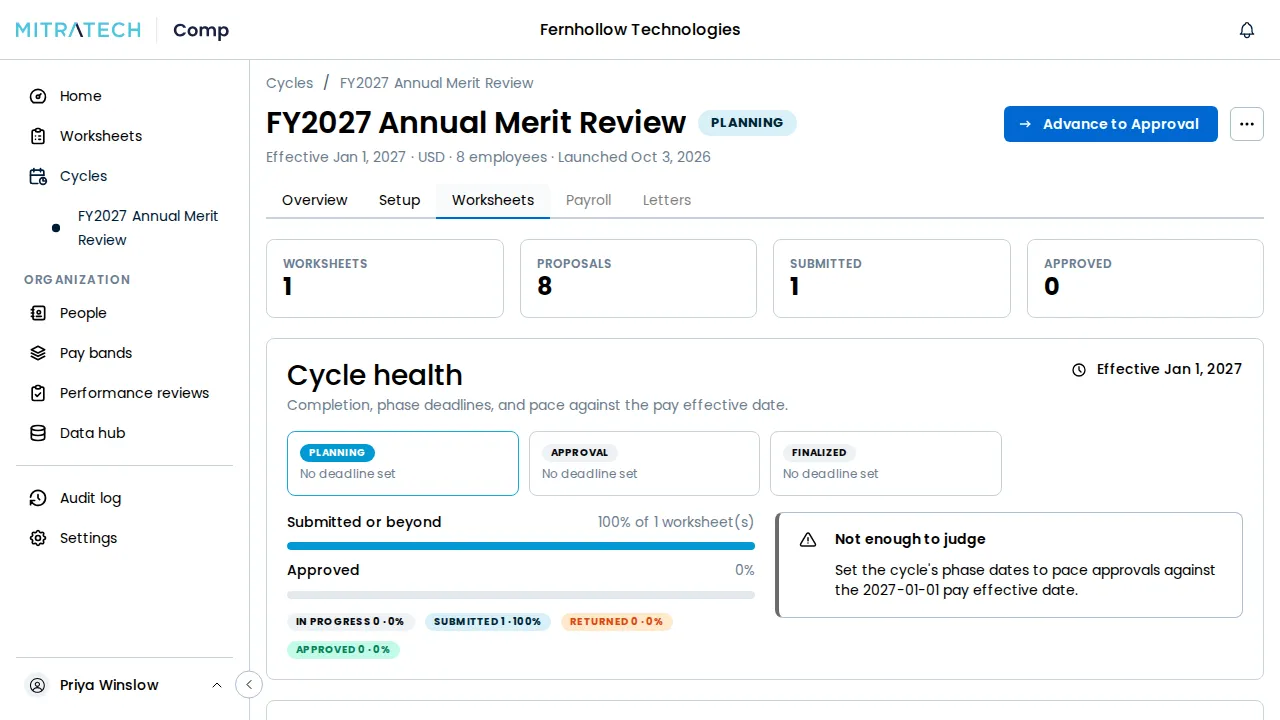
Section titled “The Worksheets tab”The cycle’s Overview tab carries the headline figures — , Submitted, Approved and Proposals — and a budget bar for each pool; See worksheets opens the detail. Open the cycle and choose the Worksheets tab. It opens with counts of Worksheets, Proposals, Submitted and Approved, and the cycle’s Cycle health — see Tracking timeline progress.
Spend against each pool
Section titled “Spend against each pool”Spend against pool shows one meter per : what has been proposed of its budget, the share used, and what remains or how far over it is. The meter turns orange above 90% and red once the pool is over. A pool’s budget is the sum of every manager’s share, set when the cycle launched — see Creating funding pools.
Managers past a pool’s limits
Section titled “Managers past a pool’s limits”When a pool carries a soft or a hard limit, the Overview tab counts the managers past them under that pool’s budget bar: 9 managers past the soft limit · 2 past the hard limit. The count covers every worksheet, whatever its status, whose team is past the limit, and a team past its hard limit counts only as past the hard limit. A pool with no manager past a limit shows no line. The Cycles page in the sidebar shows the same counts on the card of a running cycle, though Home’s Cycles table does not, and the final review lists them under Past a limit. The counts are for you to look at: they never stop a worksheet being approved or the cycle closing. A manager is stopped only when they submit, and an approver’s adjustment past a hard limit is flagged — see Approving or returning a worksheet.

Who each worksheet waits on
Section titled “Who each worksheet waits on”The manager table lists every worksheet with its Status, its Proposals, how many are Outside , and each pool’s draw against that manager’s budget. Its last column says what happens next: Awaiting the approver who holds it now, or Not yet submitted and who it routes to. At the top of a chain it names the Final Approver role rather than a person. When everything is approved, the table says Nothing outstanding — every worksheet is approved.

You can approve or return a worksheet only when it is waiting on you in its . Being an administrator does not let you decide for an approver; you can open and read any worksheet from here.
See every branch on the org chart
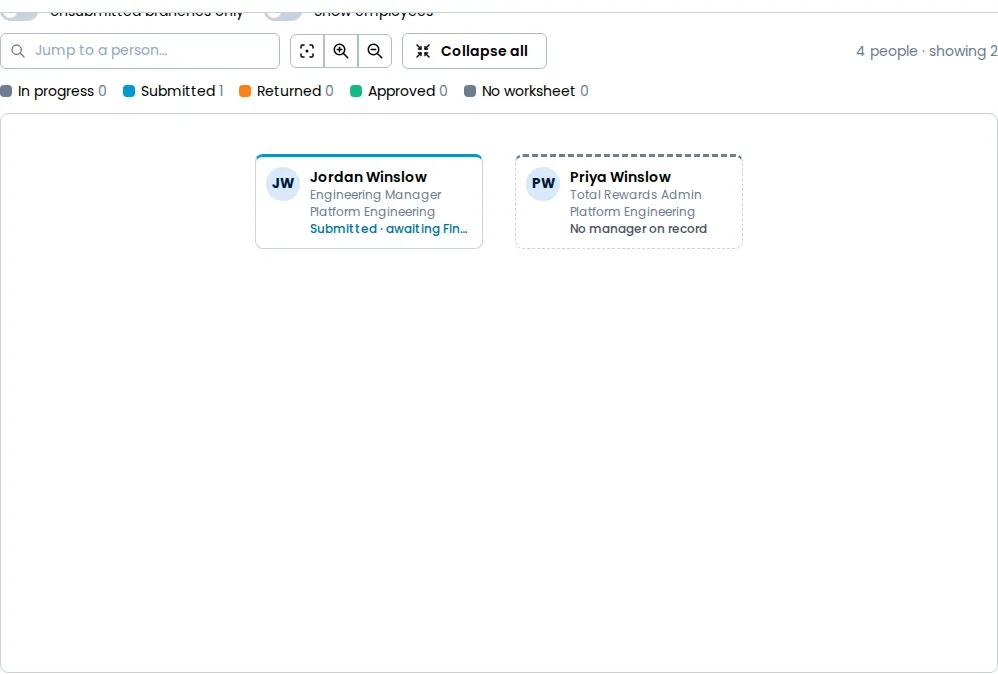
Section titled “See every branch on the org chart”Above the manager table, switch the view from Table to Chart to see the same worksheets on your organization chart. The tiles and the Spend against pool meters stay above both views. If the chart cannot load, it offers Show the table, and the tiles still show.
Each manager is colored by the status of their worksheet, and a legend above the chart counts them: In progress, Submitted, Returned, Approved and No worksheet. The counts match the tiles. A node’s last line says what happens next, in the same words as the table: Submitted · awaiting the approver who holds it now, In progress · routes to the person it will go to once it is submitted, or Approved on its own. A manager with no worksheet reads No worksheet, or No worksheet · team on the manager whose worksheet plans their direct reports.
Select a manager to open their worksheet. The chart has no buttons of its own; Approve and Return stay on the worksheet.
The chart shows managers only. Turn on Show employees to draw everyone, each employee’s node naming whose worksheet plans them when it is not their own manager’s. An employee who is left out of the cycle is drawn with a dashed outline and the reason.
Turn on Unsubmitted branches only to fold away every branch whose worksheets are all submitted or approved. A line above the chart says how many branches it folded, and each row of managers keeps the folded ones in one chip you can open. A manager with no worksheet whose team is on another manager’s folds with that manager’s branch once that worksheet is submitted or approved. A manager with no worksheet whose people nobody plans never folds, so those people stay in view.
What stands between the cycle and closing
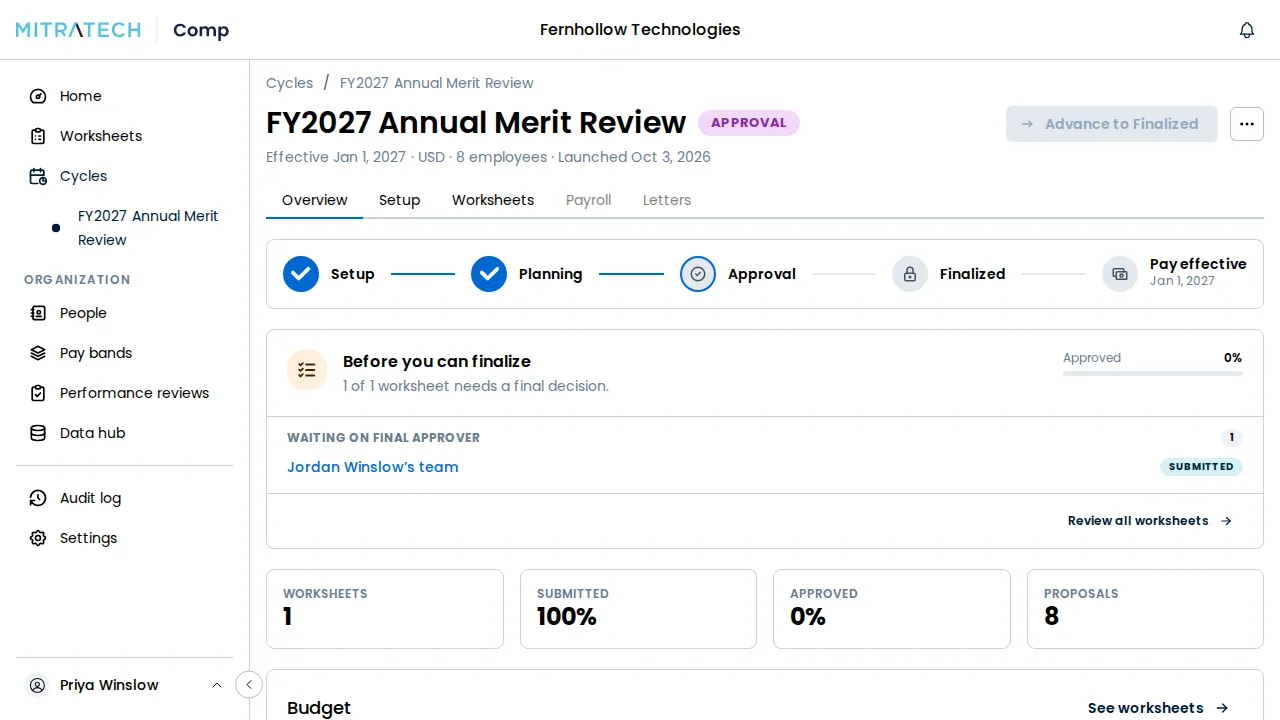
Section titled “What stands between the cycle and closing”While the cycle is live, its Overview tab lists what must be cleared before it can be , under Before you can finalize: each worksheet not yet approved, grouped by who has to act next and linked with its status, each pool over budget and by how much, and the share of worksheets approved so far. Once every worksheet is approved and every pool is within budget, it reads Ready to finalize.
Move a stuck approval along
Section titled “Move a stuck approval along”When an approver is away, a Total Rewards Admin can hand their step to someone else:
- Open the worksheet and find its Approval chain.
- Select Reassign on the step.
- Choose the New holder, an active or invited user.
- Select Reassign step.
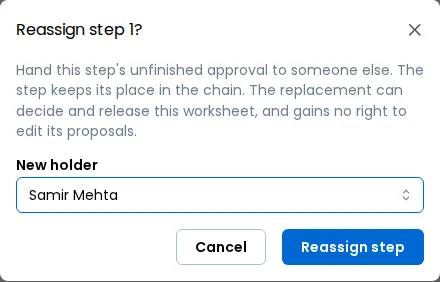
The step then reads Held by the new holder, still naming the original approver, and the new holder is notified. The final step belongs to the Final Approver role and cannot be reassigned, and a worksheet’s own manager cannot be made its approver. The new holder can decide on the worksheet, and cannot edit its proposals.

To move a whole worksheet to a different owner, a System Admin or Total Rewards Admin opens it, selects Transfer worksheet from the ⋯ menu in its header, and chooses the New owner.