
Reading the org chart
Learn to read the org chart on People: how a person is drawn, how to open and close a branch, how to find someone, and what each sees. Every member of the workspace can open it, whatever their role, and nothing on it can be edited.
Open the chart
Section titled “Open the chart”- In the sidebar, select People.
- At the end of the row of filters, choose Chart.
The address becomes /people/chart, so you can bookmark the chart or send the link to a colleague. Choose Table to go back to the list on the Employees tab. A link to /people/chart/ followed by a person’s id opens the chart centered on that person, with them selected.
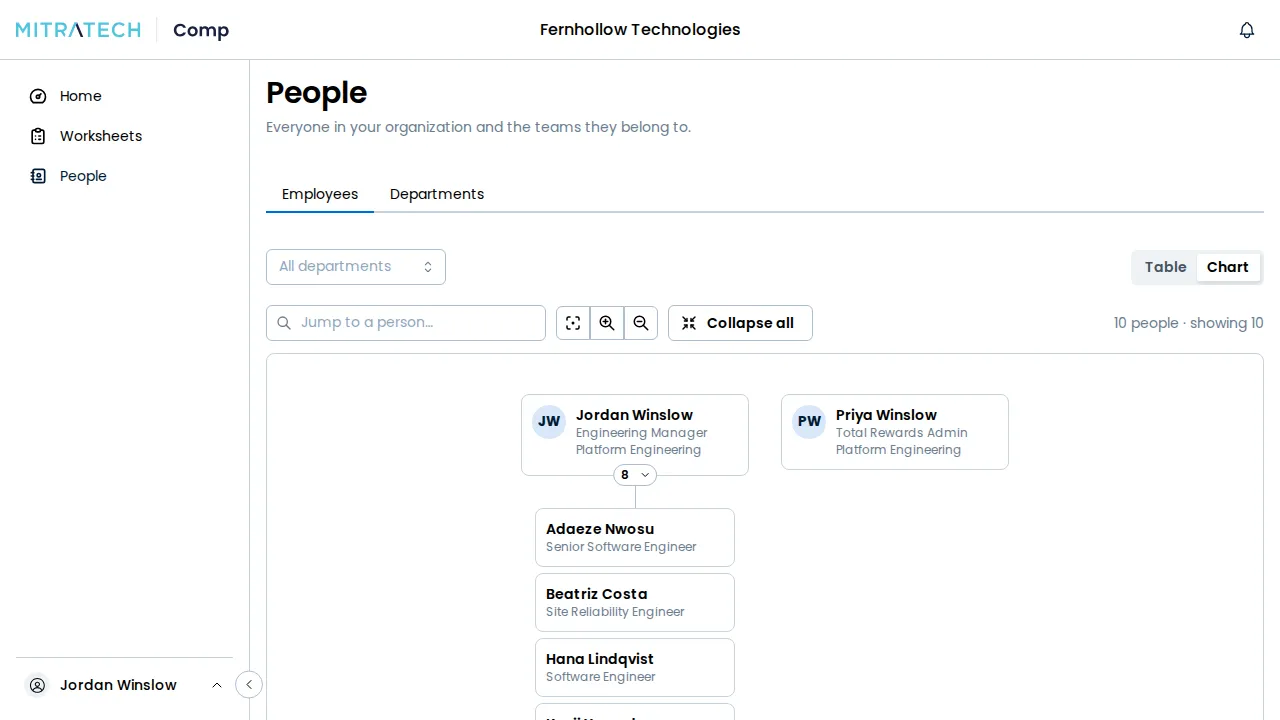
The chart draws everyone who is active, from the top of the organization down, and it opens two levels deep. Where several people have no manager, they sit side by side at the top. It never shows colors for a , for any role.
Read a person
Section titled “Read a person”Each box is one person: their name, their title, their department and the number of people who report to them directly. The title is left out when your role isn’t allowed to see it. The chart never shows pay, or , even to an administrator.
- The number on the bottom edge is the person’s direct reports. Hover it to read it in full, such as “7 direct reports · 341 in their org”. Select it to open or close that branch.
- Managers sit in a row, sorted by name. People who manage no one stack in a column of six, then + n more, which opens the rest in place.
- Select a person’s box to open their profile.
Move around
Section titled “Move around”- Drag the chart, or scroll, to move it. Hold Ctrl (⌘ on a Mac) and scroll, or use the zoom buttons, to zoom.
- Fit brings the whole chart into view.
- Collapse all closes every branch back to the opening two levels. There is no expand-all button, because a chart of every person in a large organization can’t be read; open a branch from its number, or find the person.
- The line above the chart counts the people in the organization and how many boxes are showing.
Find someone
Section titled “Find someone”Type in Jump to a person… to search by name. The results list up to eight people, each with their title and the person above them, so two people with the same name are easy to tell apart. Choose one and the chart opens the branches down to them and marks their box. Press Esc to clear the mark. The search matches names only, not titles or email addresses.
Highlight a department
Section titled “Highlight a department”Choose a department in the filter above the chart. Everyone outside that department is dimmed, and still on the chart, so the shape of the organization stays whole.
On the chart, Export CSV, the Columns menu and the status filter aren’t shown, because the chart draws active people only. Terminated people aren’t on it. Use Table for those.
What each role sees
Section titled “What each role sees”All seven roles see the same chart of the same people. The roles differ in three small ways:
- Titles. A role that your administrators have taken Title away from, in Configuring field-level permissions, sees a box with the name and department only.
- Reporting loops. If some managers report to each other in a loop, the people in it, and everyone beneath them, can’t be placed. The chart says how many people aren’t on it. A System Admin or Total Rewards Admin gets a Review in link to fix the loop; anyone else sees the count and nothing more. See Updating employee data.
- An empty chart. With nobody loaded yet, an administrator is offered Import CSV. Anyone else sees the sentence alone.
If the chart can’t be read, it says so and offers Try again and Show the table.