
Creating a cycle
Create the cycle your managers will plan in, then configure it before you launch. You need the System Admin or Total Rewards Admin , and your imported — see Importing employee data.
Create it
Section titled “Create it”-
In the sidebar, select Cycles.
-
Select New cycle. Mitratech Comp creates a draft named Untitled cycle and opens its Setup tab, with the name selected in the page header.
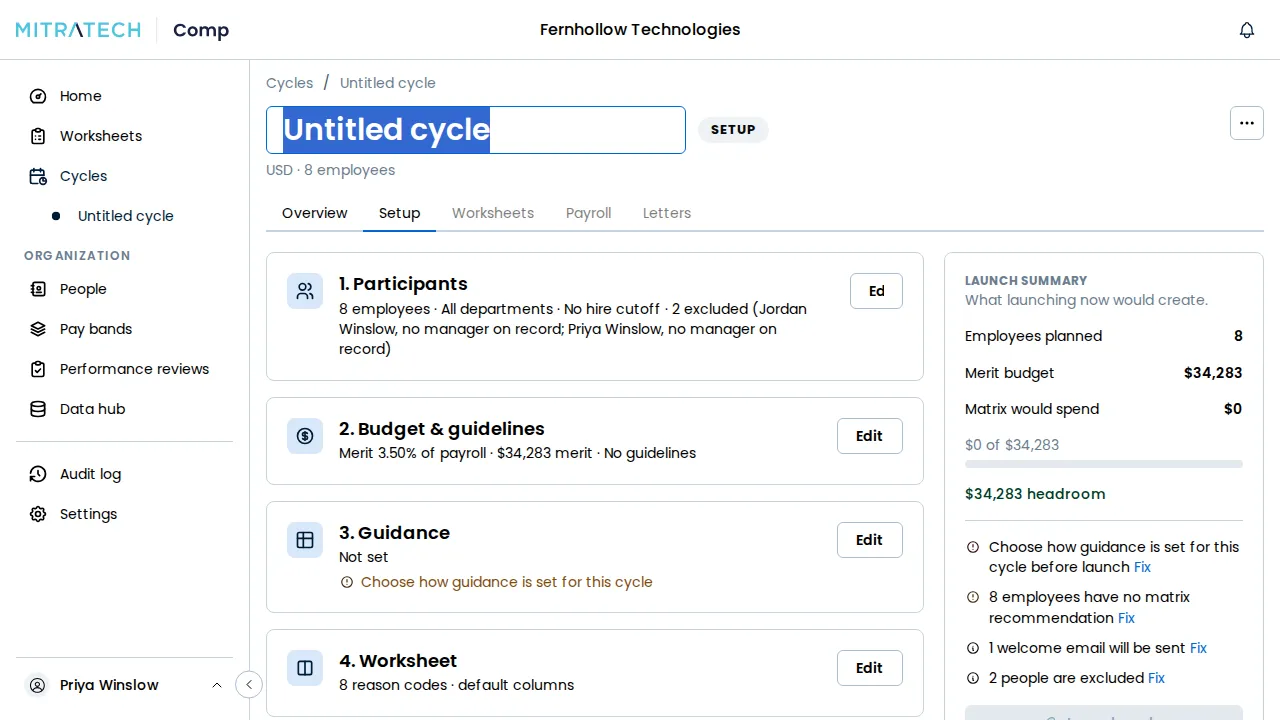
-
Type the cycle’s name, such as FY2027 , and press Enter.
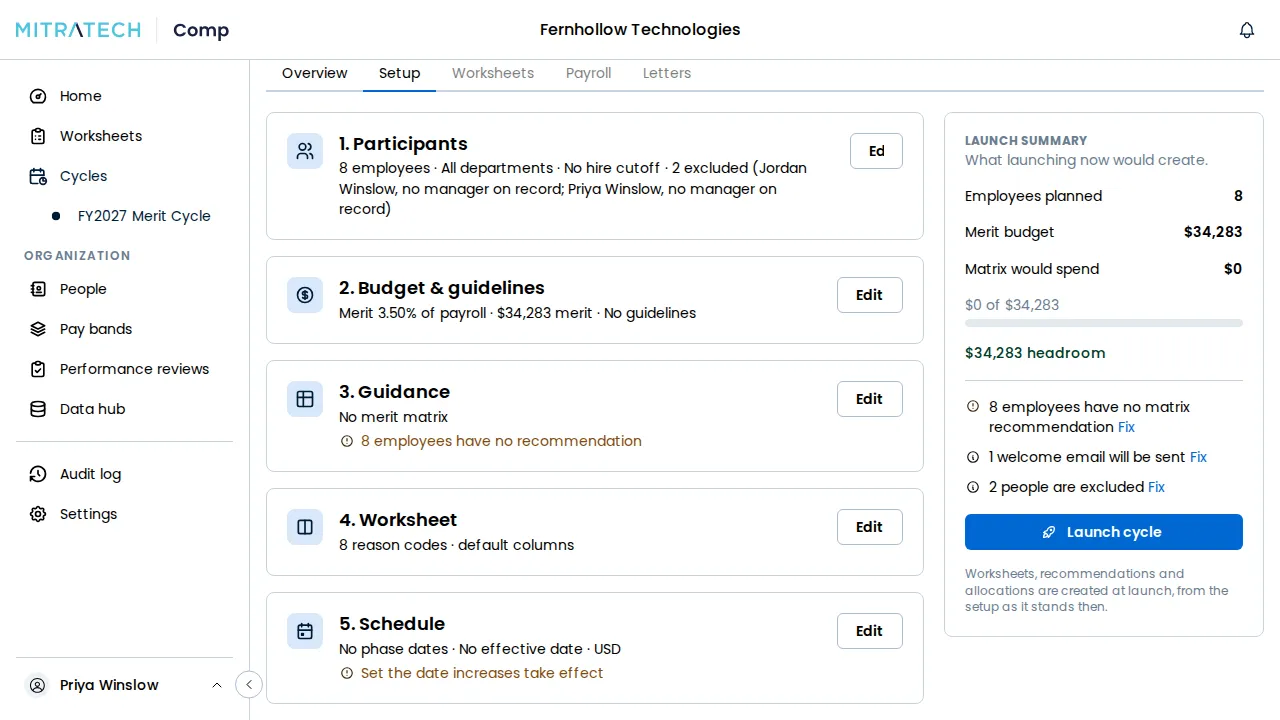
The new cycle is priced in USD, with a merit at 3.5% of eligible payroll; every manager is funded at that same rate when the cycle launches. Change either, and set the day the new pay takes effect, in the Setup tab’s sections below. Until the cycle launches, you can rename it by clicking its name in the page header.
What a new cycle is
Section titled “What a new cycle is”A new cycle is in the Setup phase with the status Draft. Nothing has been created for your managers yet: , recommendations and budgets appear only when you launch it, and the cycle’s Worksheets tab stays greyed out until then. Until launch only System Admins and Total Rewards Admins can see the cycle, and creating it sends nobody an email. Selecting the draft’s name again later — from Cycles or from Home — reopens it on this same Setup tab, not Overview.
The cycle starts with you as its default approver, eight managers can pick from, and no .
A draft you no longer want can go: open the ⋯ menu in the cycle’s header and select Delete cycle. Deleting removes a cycle nothing has been created from, and it is recorded on the audit log. Once a cycle has launched, the menu offers Cancel cycle instead — see Cancelling a cycle.
Configure it next
Section titled “Configure it next”The cycle’s Setup tab holds everything else, in five numbered sections. Each one shows a one-line summary of what it holds and any issue with it, and each has its own article:
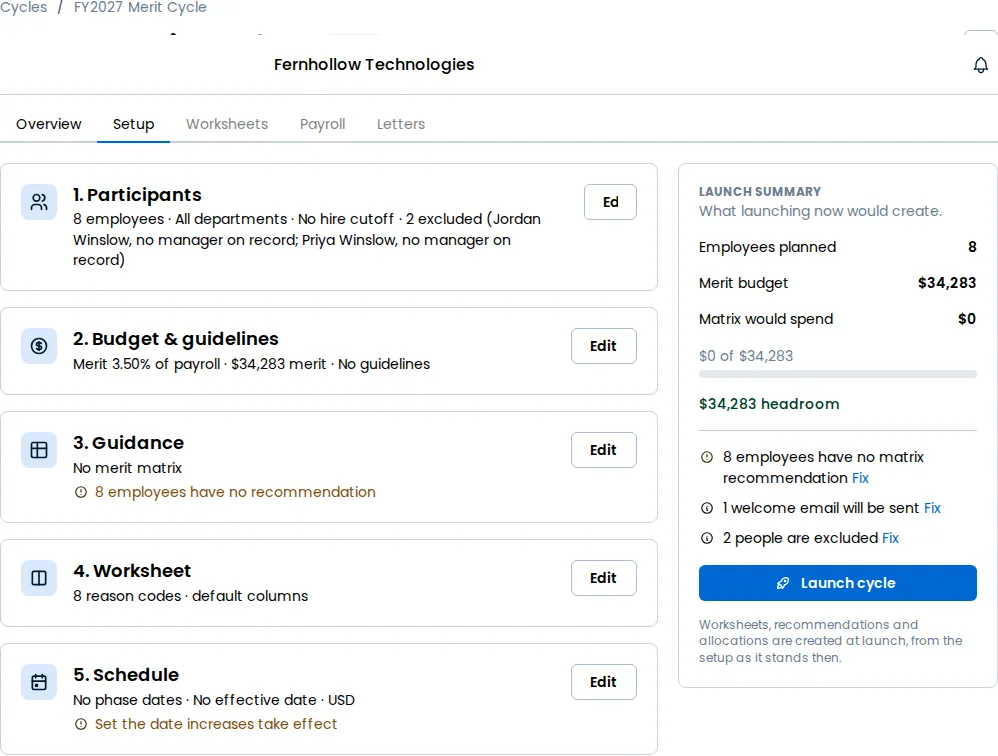
- 1. — who the cycle plans. Defining who is eligible and Inviting participants
- 2. Budget — the funding pools. Creating funding pools
- 3. Guidance — how guidance for this cycle is set, the if that is the answer, and the managers plan within. Building a merit matrix or pay guidance and Setting guardrails for managers
- 4. Worksheet — the reason codes a manager picks from when a proposal needs explaining, and any extra columns on the worksheets. Setting guardrails for managers
- 5. Schedule — the , the currency and the dates you publish for each phase. Setting a timeline
Select Edit on a section to open it. One section is open at a time, with one Save and one Cancel at its foot, and it is marked Unsaved while it holds changes you haven’t saved. Opening another section, or leaving the page, with unsaved changes asks you first.
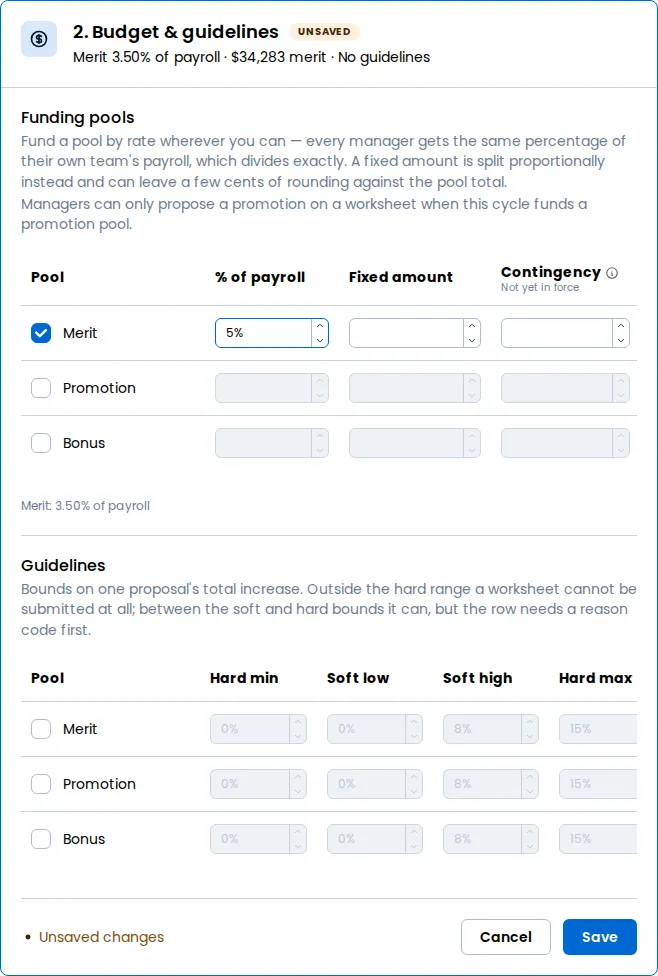
Beside the sections, the Launch summary shows what launching now would create, and lists every open issue with a Fix link that opens the section it belongs to. See Verifying everything before launch.