Enrolling and managing your second factor (MFA)
Set up , so signing in takes a code as well as your password. You need to be signed in to your workspace with your password; everything here is on your own profile, and nobody else can set it up for you.
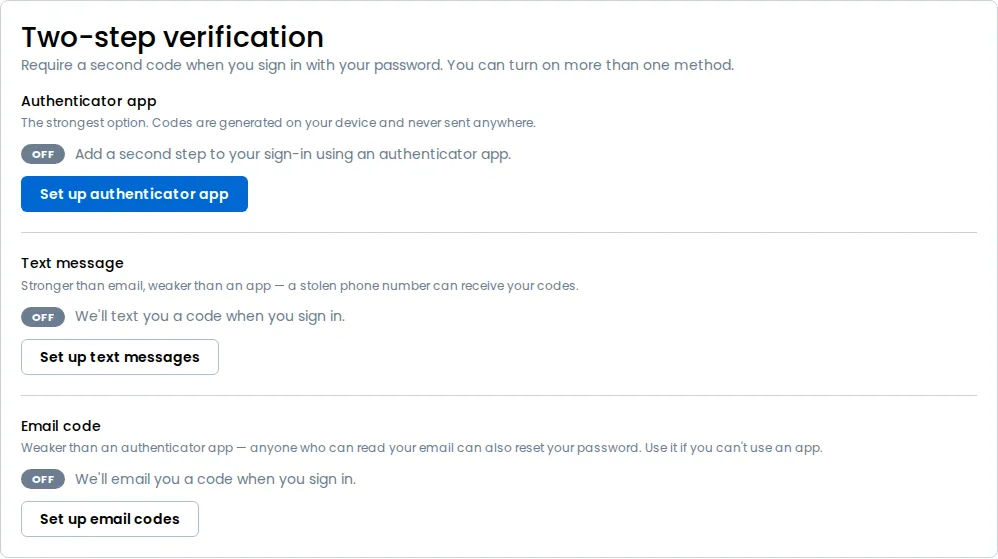
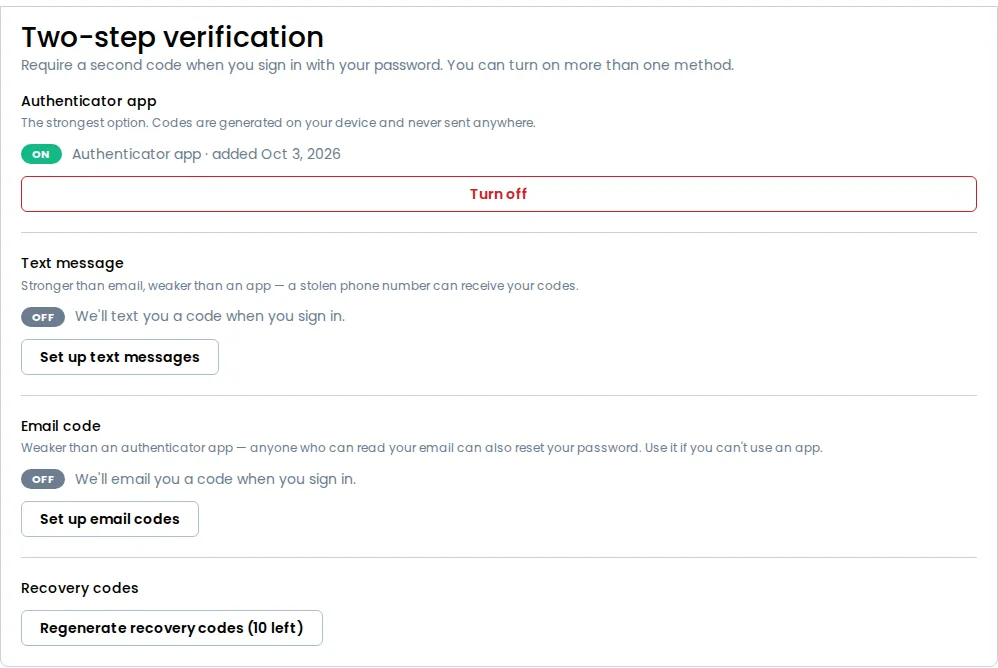
Open your profile menu and select Profile. The Two-step verification section lists the three methods: Authenticator app, Text message and Email code. You can turn on more than one.
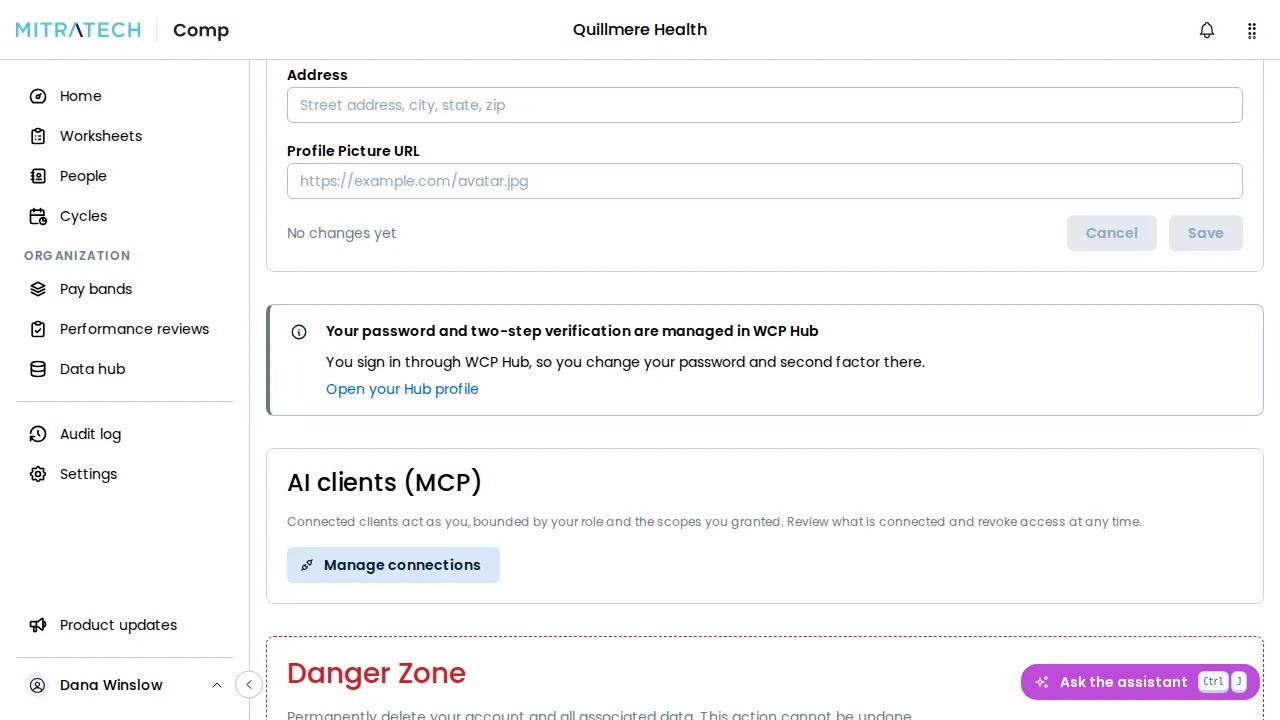
If your workspace signs you in through your identity provider, the section says two-step verification is managed there instead, and you have nothing to set up here.
Choose a method
Section titled “Choose a method”- Authenticator app is the strongest. Its codes are generated on your device and never sent anywhere.
- Text message sends a code to your mobile number. It’s weaker than an app, because anyone who takes over your phone number receives your codes. If the row reads Unavailable, text-message codes aren’t enabled here.
- Email code sends a code to your sign-in email address. It’s the weakest, because anyone who can read your email can also reset your password. Use it if you can’t use an app.
Set up an authenticator app
Section titled “Set up an authenticator app”-
Select Set up authenticator app.
-
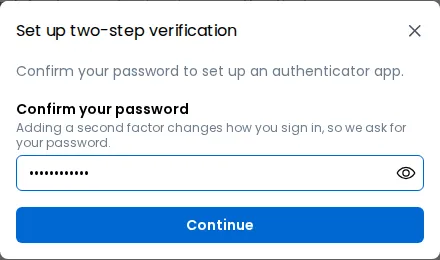
Enter your password and select Continue.
-
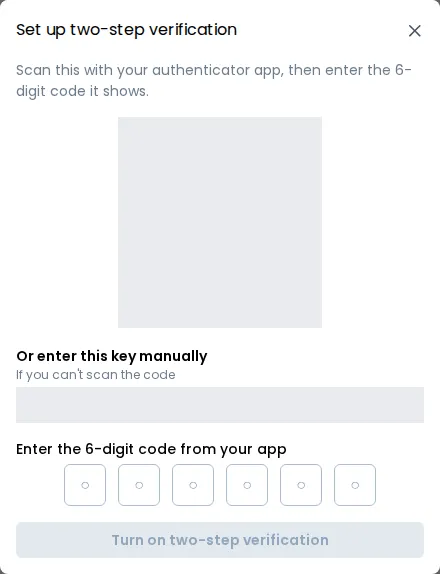
Scan the QR code with your authenticator app. If you can’t scan it, type the key under Or enter this key manually into the app instead.
-
Enter the 6-digit code the app shows, then select Turn on two-step verification.
Set up text messages
Section titled “Set up text messages”- Select Set up text messages.
- Enter your Mobile number, including the country code, and select Send code.
- Enter the 6-digit code we text you and your password, then select Turn on text-message codes.
If you typed the number wrong, select Use a different number. Send a new code sends another one.
Set up email codes
Section titled “Set up email codes”- Select Set up email codes. We email a 6-digit code to your sign-in email address.
- Enter the code and your password, then select Turn on email codes.
Send a new code sends another one.
Whichever method you set up, it reads On once it’s done, and you’re signed out everywhere else. If you close the window part way through, the method reads Setup incomplete; select Finish setup to carry on.
Save your recovery codes
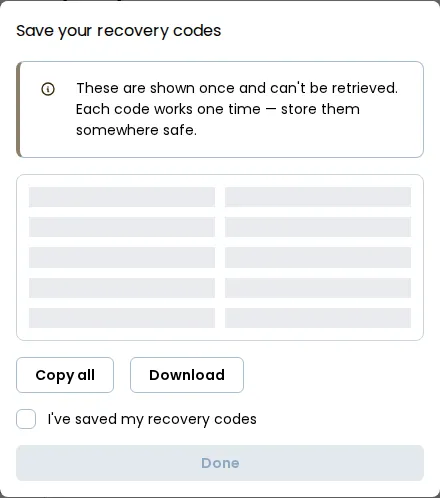
Section titled “Save your recovery codes”The first time you set up a method, we show you ten . Each one signs you in once, in place of a code, if you can’t reach your method.
They’re shown only this once and can’t be retrieved later, so select Copy all or Download and keep them somewhere safe. Tick I’ve saved my recovery codes, then select Done.
Setting up a second or third method keeps the codes you already have. The Regenerate recovery codes button on your profile shows how many you have left, and we warn you when you’re down to two.
To replace them:
- Select Regenerate recovery codes.
- Enter a code from your authenticator app, or one of your recovery codes, and select Regenerate.
Your old codes stop working straight away, and we show you ten new ones to save.
Signing in with your second factor
Section titled “Signing in with your second factor”After your password, you’re asked for a 6-digit code. Enter the one from your authenticator app, or the one we text or email you; a texted or emailed code is sent as the page opens, and Send a new code sends another after a short wait.
If you have more than one method, you can switch between them on that page. Default method on your profile chooses which one we ask for first.
To use a recovery code, select Use a recovery code instead and enter one. That code is then spent.
After five wrong codes the sign-in is cancelled, and you sign in again to get a new one.
Change or turn off a method
Section titled “Change or turn off a method”Select Turn off on the method, prove it’s you, and confirm with Turn off:
- For an authenticator app, enter a code from the app or a recovery code.
- For text messages, select Text me a code and enter it, or use an authenticator code or a recovery code.
- For email codes, select Email me a code and enter it, or use an authenticator code or a recovery code.
To change your phone number or authenticator app, turn the method off and set it up again. Turning off your last method also discards your recovery codes, and you’re given a new set when you next set one up.
If your workspace requires two-step verification, you can’t turn off your only method. Set up another one first. See Requiring MFA for everyone.
If you’ve lost your second factor
Section titled “If you’ve lost your second factor”Sign in with a recovery code, then set up your method again. If you have no recovery codes left, ask a System Admin to reset your two-step verification — see Getting a locked-out teammate back in.
If your workspace signs in through WCP Hub
Section titled “If your workspace signs in through WCP Hub”A workspace on WCP Hub has no Two-step verification section. Your Profile shows a note saying your password and two-step verification are managed in WCP Hub, and Profile in your profile menu opens your profile in Hub, where you set up and change your second factor. See Mitratech Comp on WCP Hub.