
Connecting Claude, ChatGPT or a coding agent
Connect an to your workspace from the client’s own connector settings, then sign in to Mitratech Comp and choose what it may access. You need a sign-in on your workspace and an account in the AI client.
Open the AI clients page
Section titled “Open the AI clients page”- From your profile menu, open Profile.
- In the AI clients () card, select Manage connections.

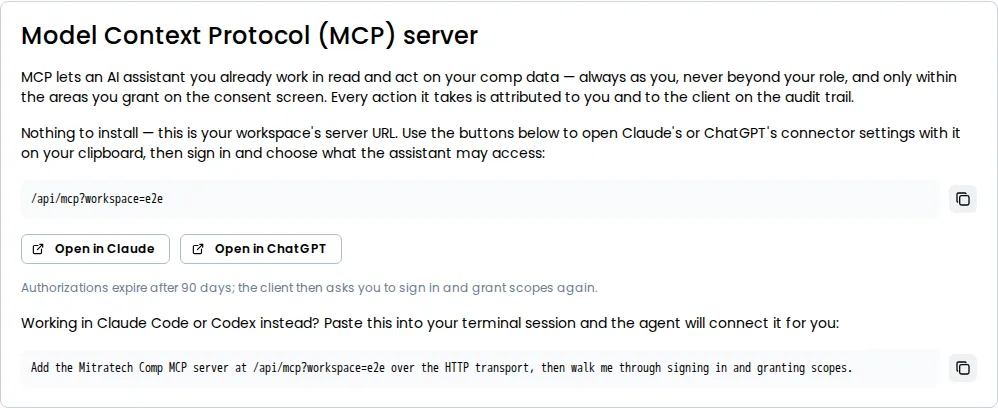
The AI clients page opens. Its Model Context Protocol (MCP) server card holds everything you need to connect a client.
Claude or ChatGPT
Section titled “Claude or ChatGPT”- Select Open in Claude or Open in ChatGPT. Mitratech Comp copies its server address to your clipboard and opens that client’s connector settings in a new tab. The address is your workspace’s own web address followed by
/api/mcp. To copy it without opening a client, select the copy button beside it. - In the client, add a connector and paste the server address. Paste all of it: the web address at its start is how the connection knows which workspace to open.
- The client opens a browser window to finish connecting, on your workspace’s own sign-in. Continue with Sign in and choose what to share.
Claude Code or Codex
Section titled “Claude Code or Codex”- Under Working in Claude Code or Codex instead?, select the copy button beside the prompt (its tooltip reads Copy prompt).
- Paste the prompt into your Claude Code or Codex session. It names the same server address as the one above, on your workspace’s own web address, and asks the agent to add the Mitratech Comp server and walk you through signing in.
- When the agent opens a browser window, it opens on your workspace’s sign-in. Continue below.
Sign in and choose what to share
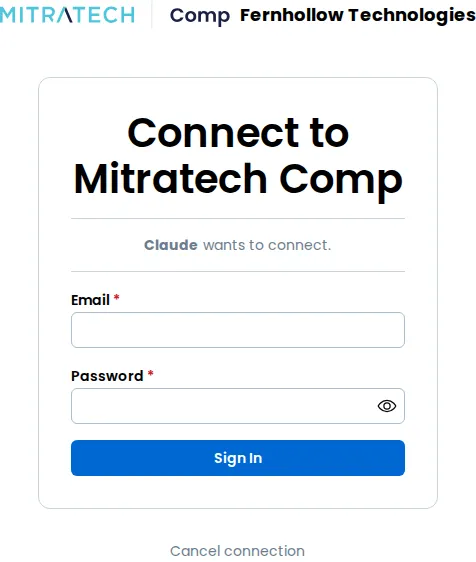
Section titled “Sign in and choose what to share”The window opens on Connect to Mitratech Comp and names the client that wants to connect.
Below the name, the window says where access will be sent, such as claude.ai. Check that address: an app chooses its own name, but it can’t change where your access goes. If the address isn’t one Mitratech Comp has verified, the window also shows Unverified app. Only continue if you started this connection yourself and you recognize the address. Coding agents such as Claude Code and Codex receive access on your own computer, so they show an address like 127.0.0.1 and are always unverified.
-
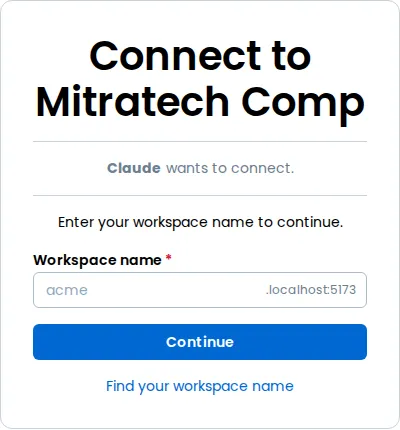
If you aren’t signed in, sign in with your Email and Password and select Sign In, or select Continue with . Your workspace’s usual sign-in rules apply, so enter your code if you’re asked for one. If the address you used didn’t name a workspace, or named one that no longer exists, the page asks for your workspace name instead: enter it and select Continue to open your workspace’s sign-in. If you’ve forgotten it, select Find your workspace name, enter your email and select Submit. If that address belongs to a workspace, we email you the name of every workspace it belongs to, and the page shows the same message either way. Select Cancel to go back to the workspace name field.
-
The page names the workspace the client will connect to. Under Choose what to share, every the client asked for is listed and checked. Clear any you don’t want it to have. What each access scope covers explains each one.
-
Select Approve. The window hands you back to the client, and the connection is ready.
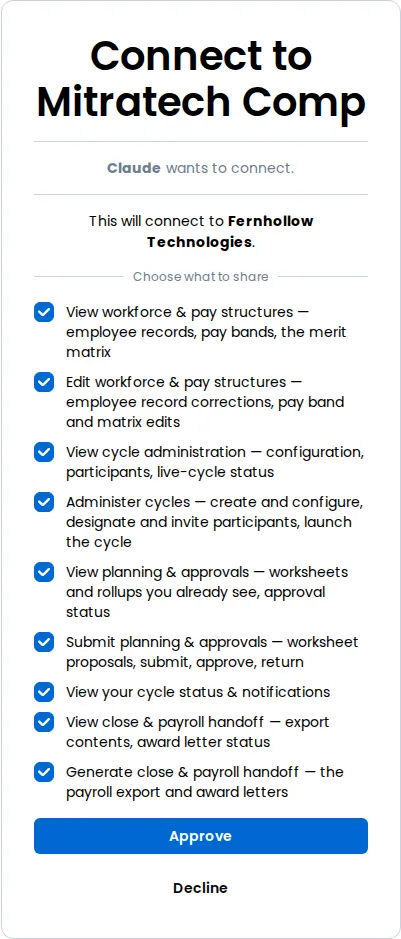
To stop without connecting, select Decline, or Cancel connection before you’ve signed in. The client is told you declined, and nothing is connected.
A connection request lasts 10 minutes. If it has run out, the page says the connection request has expired; go back to the client and start again.
After you connect
Section titled “After you connect”The client appears under Connected clients on the AI clients page, with the scopes you granted.

The connection lasts 90 days, and then the client asks you to sign in and choose its scopes again. It ends sooner if you reset your password or change your two-step verification, or if an admin removes you from the workspace. To take access back sooner, see Reviewing and revoking a connection.