
Using the assistant
The assistant is a panel that sits beside the page you are on. It explains numbers you can already see, such as why an employee’s is what it is or how a team’s spend adds up, and it shows the figures it read next to its explanation. Everyone who signs in to your workspace can use it unless a System Admin has turned it off.
It is separate from connecting an such as Claude or ChatGPT; for that, see What an AI client can do in Mitratech Comp.
Open the panel
Section titled “Open the panel”Select Ask the assistant at the bottom right of any page, or press Ctrl+J (⌘J on a Mac). The panel opens on the right and the page makes room for it, so you can read the while you ask about it.
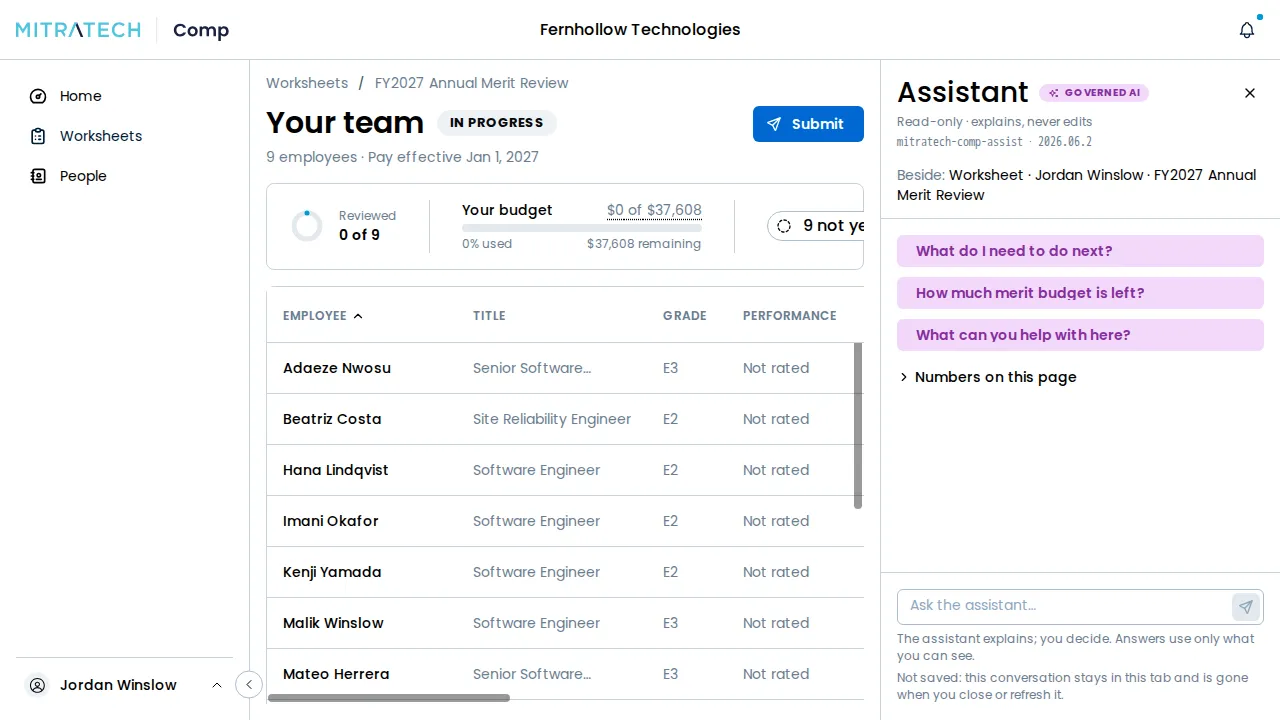
The header tells you what you are talking to:
- marks the panel as the product’s AI.
- Read-only · explains, never edits says what it can do.
- Beside names the page the panel is looking at. On a worksheet it also names the person whose row is open, and no one while every row is open. It changes as you move to another page, and the panel stays open and keeps the conversation.
Select the close button or press Ctrl+J again to close it. The Ask the assistant button comes back.
Ask a question
Section titled “Ask a question”There are four ways to ask:
- A suggested question. Under the header, the panel offers three questions chosen for the page you are on and your . Select one to ask it.
- Numbers on this page. Expand this list and select a number, such as one employee’s compa-ratio or the merit pool, to ask about it.
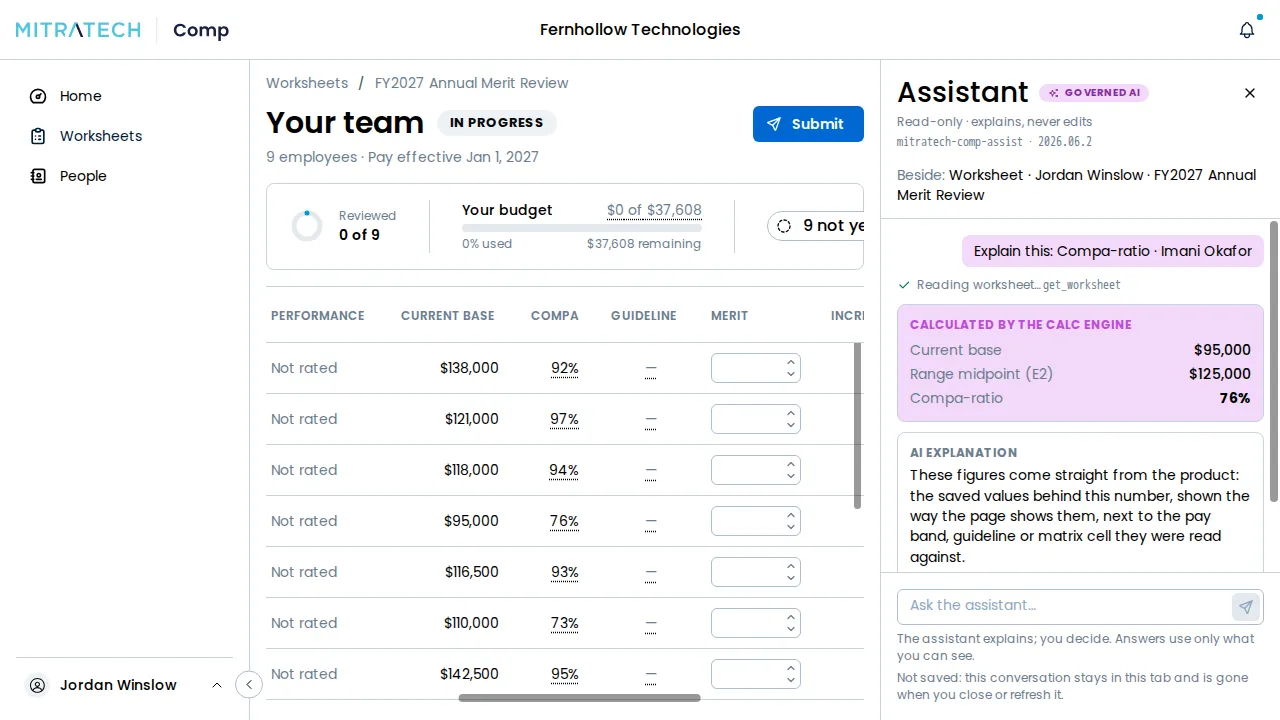
- Explain with AI. Hover a number whose math opens on hover, and select Explain with AI on the card that appears. The panel opens and explains that number.
- Your own words. Type in the box at the bottom, then press Enter to send. Shift+Enter starts a new line.
An answer builds up in the panel. A line appears for each thing the assistant looks up, then the figures, then a short explanation in words, and last the people or sections it used, as chips. Selecting an employee’s chip on a worksheet goes to that employee’s page of it, opens their row and brings it into view; on a or a it takes you to their section.
What it can answer
Section titled “What it can answer”The assistant answers questions about the page you are on and the data behind it: why a number is what it is, where a team stands against its budget, what you need to do next, and when the deadline is. It reads only what you can read, the way you would. Your role, the part of the organization you can see, and the fields hidden from your role all apply, so it can’t tell you about something you couldn’t open yourself.
Every figure in an explanation is one of the figures shown above it, formatted as the product shows it. If the assistant can’t put a figure into words that match, it shows the figures alone, with The assistant couldn’t word this answer. The figures above are the product’s.
When it has nothing to read that answers the question, it says I can’t answer that here yet. Try one of these: and offers three questions for the page. A question about another manager’s team ends this way, because you couldn’t read that team yourself. If something goes wrong, it says Something went wrong asking the assistant. Ask again.
Each question is answered on its own. The assistant doesn’t carry an earlier question into the next one, so put what matters in the question you are asking.
It only reads
Section titled “It only reads”The assistant never changes anything. It can’t enter or edit a recommendation, submit or approve a worksheet, correct an employee record, change a setting or send anything. What it reads, it reads as you, and the decision is still yours. The panel reminds you with The assistant explains; you decide.
Nothing is saved
Section titled “Nothing is saved”The conversation lives in your browser tab and nowhere else. Closing the panel and moving between pages keep it. Refreshing the page or closing the tab clears it, and a second tab starts with an empty panel. The panel says so under the box: Not saved: this conversation stays in this tab and is gone when you close or refresh it.
Mitratech Comp doesn’t keep your questions or its answers, and an ask is not recorded on the . See How AI activity appears on the audit trail.
The monthly allowance
Section titled “The monthly allowance”Each workspace has an allowance for the assistant every month, shared by everyone in it. Your workspace’s allowance is set for you; it isn’t a setting you can change. It starts over on the first day of each month (UTC).
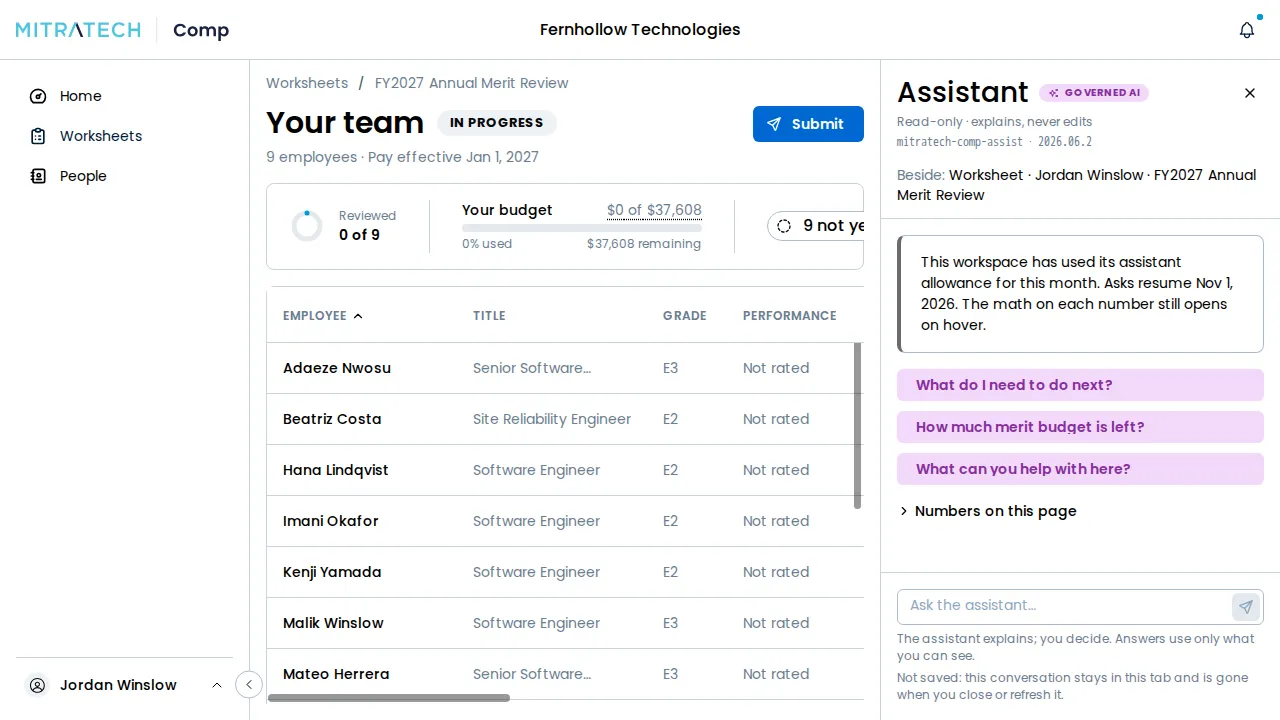
When the workspace has used it up, the panel shows a notice that reads This workspace has used its assistant allowance for this month. It gives the date asks resume and adds that the math on each number still opens on hover. A question you send anyway gets the same message, with the date, in place of an answer.
When the assistant is off
Section titled “When the assistant is off”A System Admin can turn the assistant off for the whole workspace or for one role. Nobody it applies to sees Ask the assistant, Ctrl+J (⌘J on a Mac) opens nothing, and there is no Explain with AI. The math on each number still opens on hover.
If you already had a page open when the assistant was turned off, the panel says so the next time you open it or ask a question: The assistant is off for your role when it’s off for the role you have, or The assistant is off for and then your workspace’s name when it’s off for everyone. Once you close the panel, the button is gone.
If both are off, the panel gives the workspace’s message. Turning the assistant back on lets people ask at once, and the button comes back as soon as they move to another page or return to the tab. To turn it off or on, see Customizing workspace settings and branding for the whole workspace and Understanding roles for one role.